Connecting Bambu Lab printers to SimplyPrint
Written By Albert Møller Nielsen
Last updated 6 months ago
Connecting Your Bambu Lab Printers to SimplyPrint
All support and feedback will be handled through our Discord server. To join click the link below!
Support, feedback & updates: join our Discord server
During the beta, all support and feedback will be handled through our Discord server. Click here to join!
Before you start
Before you start this guide you should have the following:
- A device (such as a computer or a Raspberry Pi) that you can use to run the SimplyPrint Bambu Lab integration.
- This device should be turned on at all times, and connected to the same network as the printer.
- We recommend using a Raspberry Pi, or an old computer that you can leave running.
- One or more Bambu Lab printers.
- You can connect multiple printers to the same SimplyPrint Bambu Lab integration, but you will need to repeat the steps in this guide for each printer.
Step 1: Install the SimplyPrint Bambu Lab integration
Depending on the operating system of your device, the installation process will be slightly different. You can find the installation instructions for your operating system here.
After you have followed the instructions, the integration should now be installed and ready to go.
Step 2: Opening the Web Interface
Make sure the Bambu Lab Client is running on your device first. Then, let's open the SimplyPrint Bambu Lab Web Client in your browser: when the client runs, it runs silently in the background with no popups, no UI and no "application window"; the only way to interface with the client is via your web-browser.
If you're on Windows, check that the client is running by looking in your "System tray"; either out in the main area, or in the "drawer" (the little "arrow down: V" icon), You can double-click it to open the web interface too.
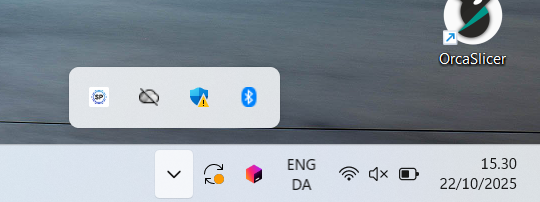
Otherwise, open the web interface where you can add and manage linked printers via your browser: to open the web interface, open a web browser and go to http://localhost:8000 (or http://<your-device-ip>:8000 if you are not running the SimplyPrint Client on the same device as your web browser).
Note: if the port "8000" is already in use on your device/network, try ":8001" and so on. More info here; https://help.simplyprint.io/en/article/bambu-lab-client-setup-troubleshooting-guide-xb0jix/
The web panel should look like this:
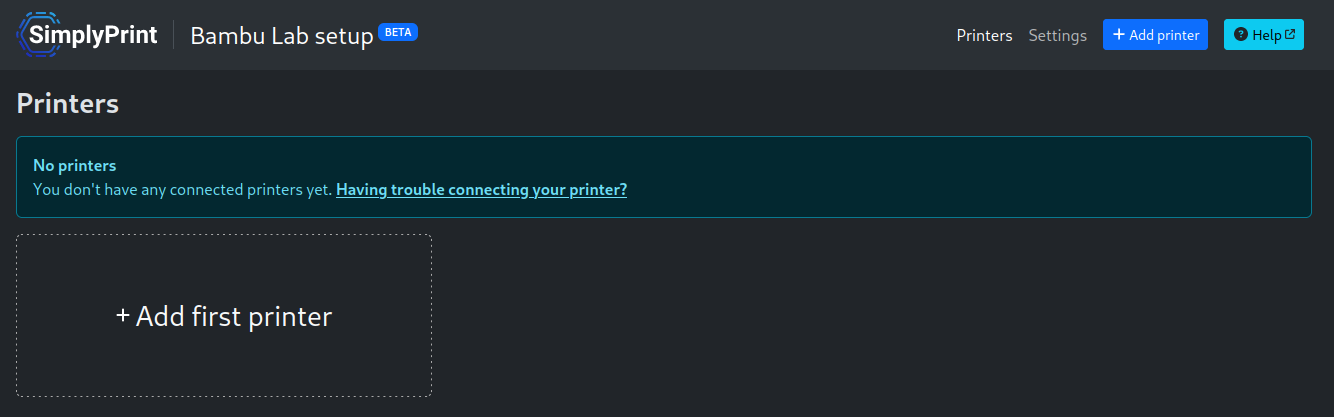
On MacOS and Windows the web interface can also be opened by clicking the SimplyPrint icon in the system tray.
Step 3: Adding a printer to the integration
To add a printer press the "Add printer" button in the top right corner of the page. This will ask you to fill out some information such that we know how to communicate with your printer. This information is:
- The model of your printer.
- The printer's IP address
- The printer's access code
- The printer's serial number
To get these details, please refer to these sections depending on which printer you have:
If you have a Bambu Lab X1, X1C or X1E, please refer to this section.
If you have a Bambu Lab P1P or P1S, please refer to this section.
If you have a Bambu Lab A1 or A1 Mini, please refer to this section.
Once you have the printer's details, fill out the information in the "Add printer" page, and press "Add printer" to continue.
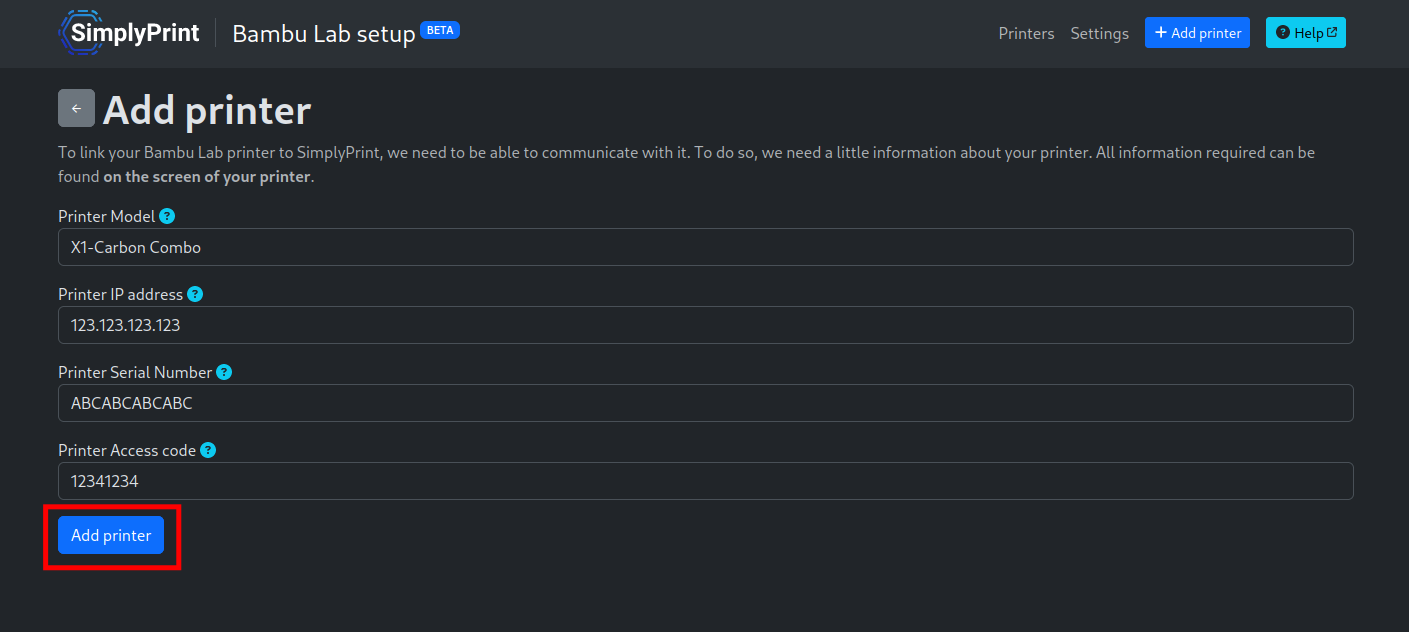
After you have added the printer, return to the "Printers" page.
Step 4: Linking the Printer to SimplyPrint
After you have added the printer to the integration, you should see a "pending printer" in the "printers" page:
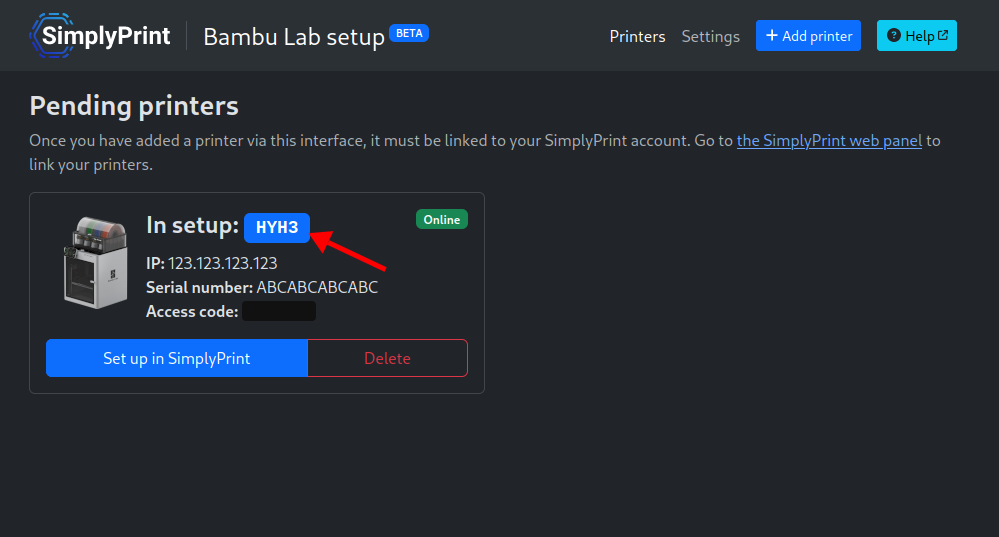
Here you can find the setup code for the printer. Copy this setup code, and go to the SimplyPrint panel, where you can add the new printer:
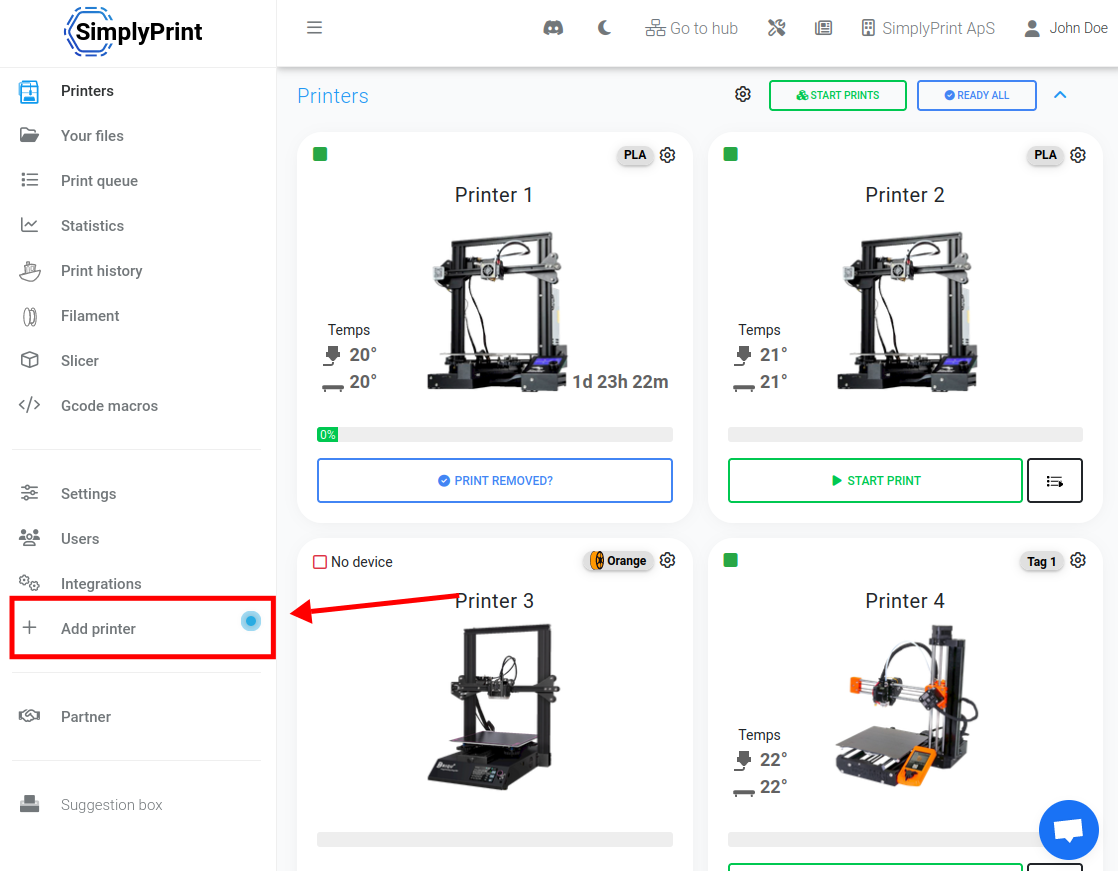
In the popup you should be able to find your printer and set it up:
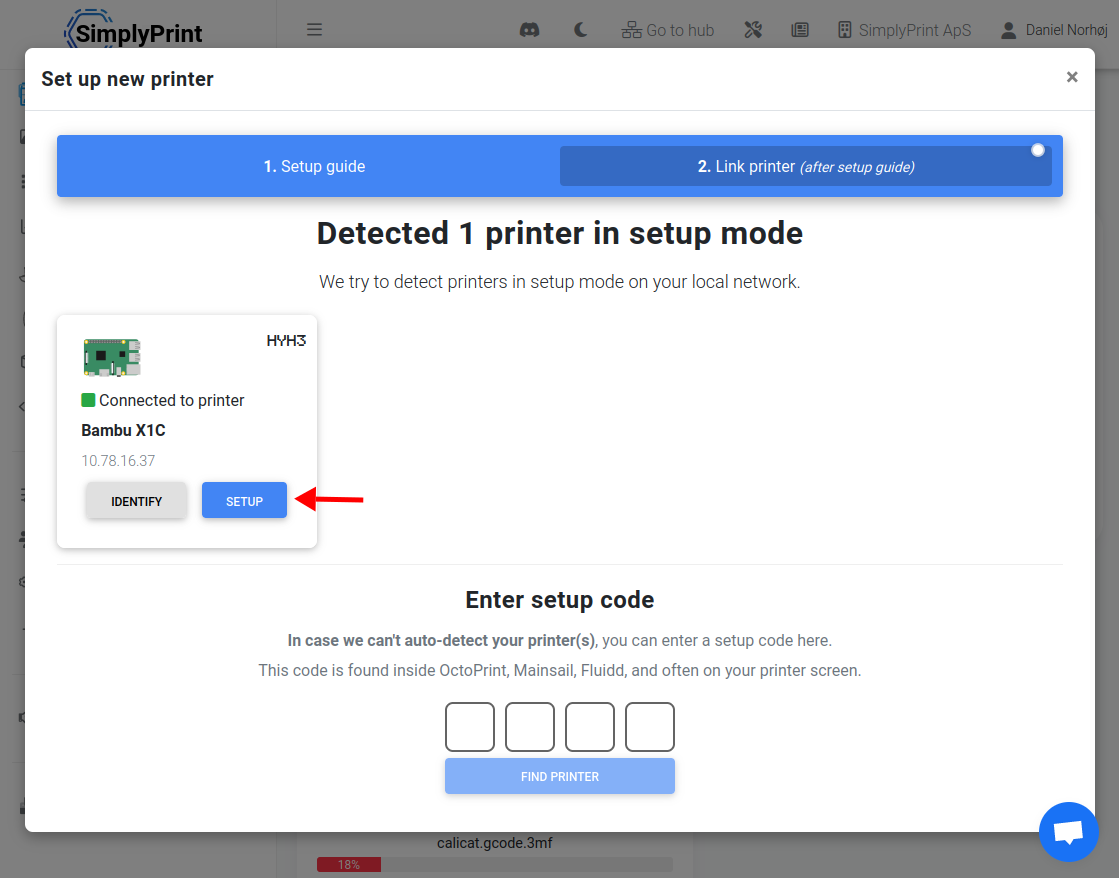
If it does show up, enter the setup code manually at the bottom.
Your Bambu Lab printer is now connected to SimplyPrint!
Gathering setup information
Gathering setup information on X1, X1C and X1E
Follow these steps to find the following information:
- Printer's IP address
- Printer's access code
- Printer's serial number
IP Address and Access Code
To get the IP address and access code from your Bambu X1, X1C or X1E, follow these steps:
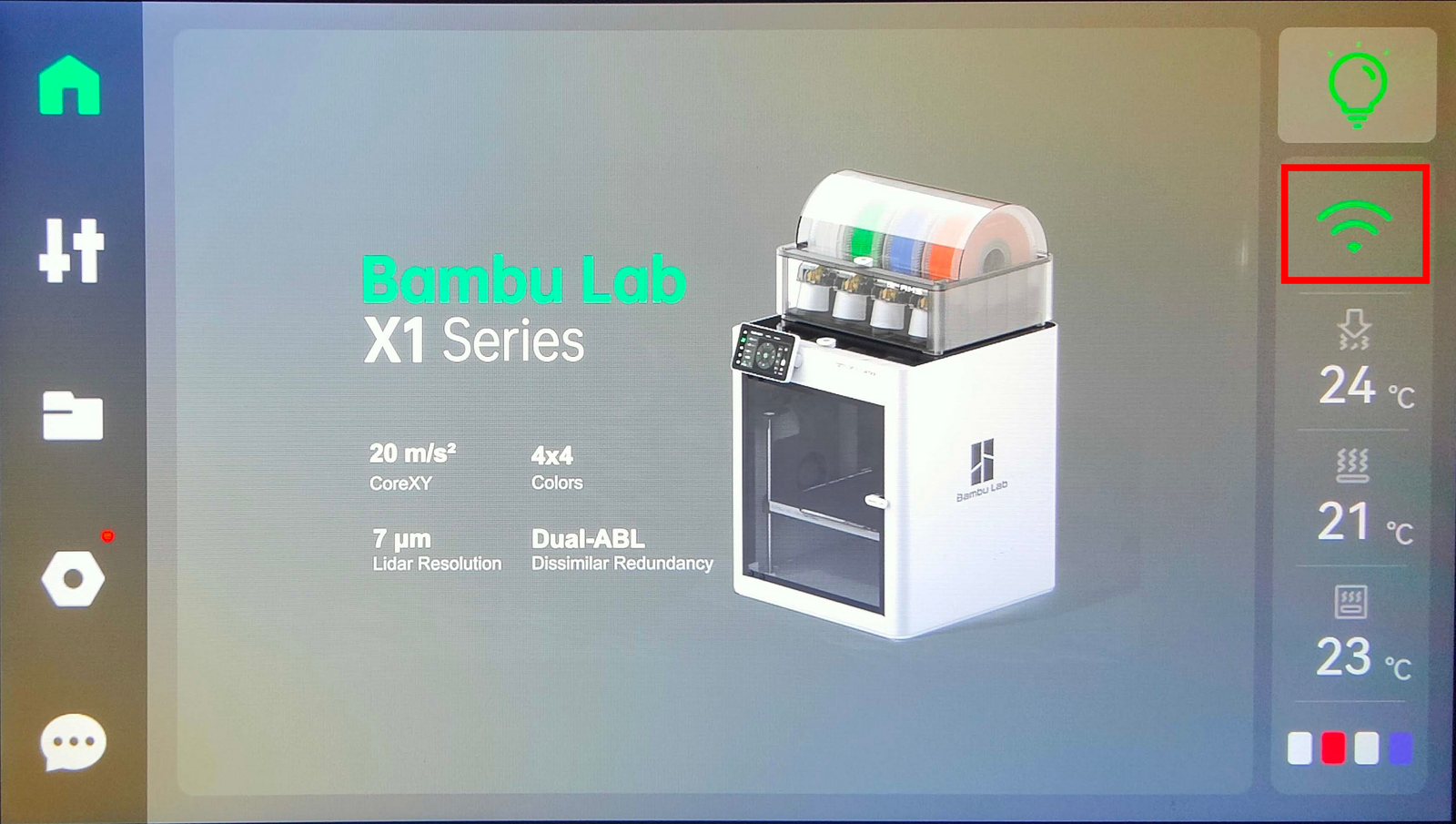
1. From the home page, navigate to the network settings:
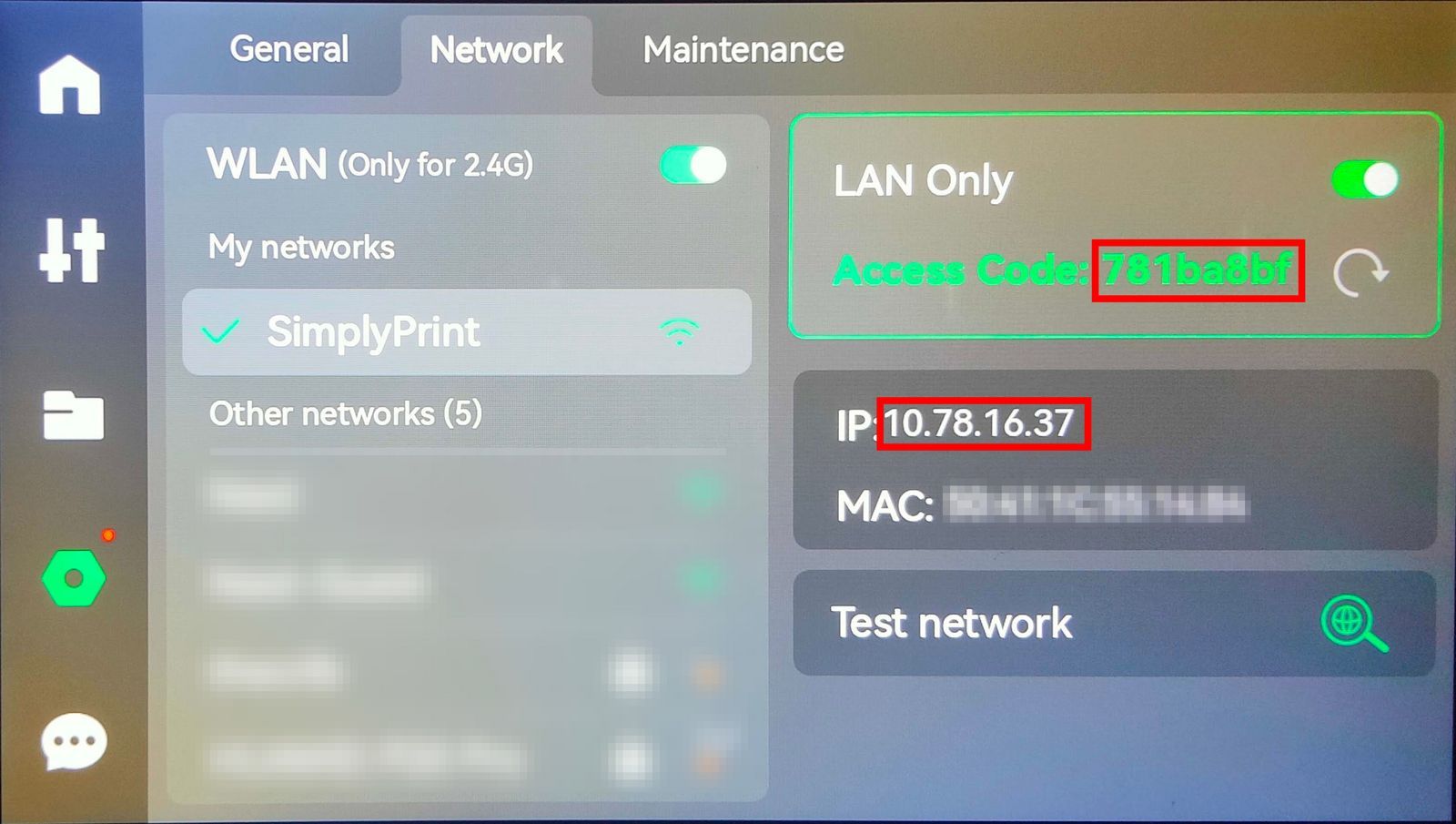
2. Here you should see both the printer's IP and it's access code:
Serial number
Follow these steps to find the serial number of your Bambu X1, X1C and X1E.
1. Navigate to the settings page:
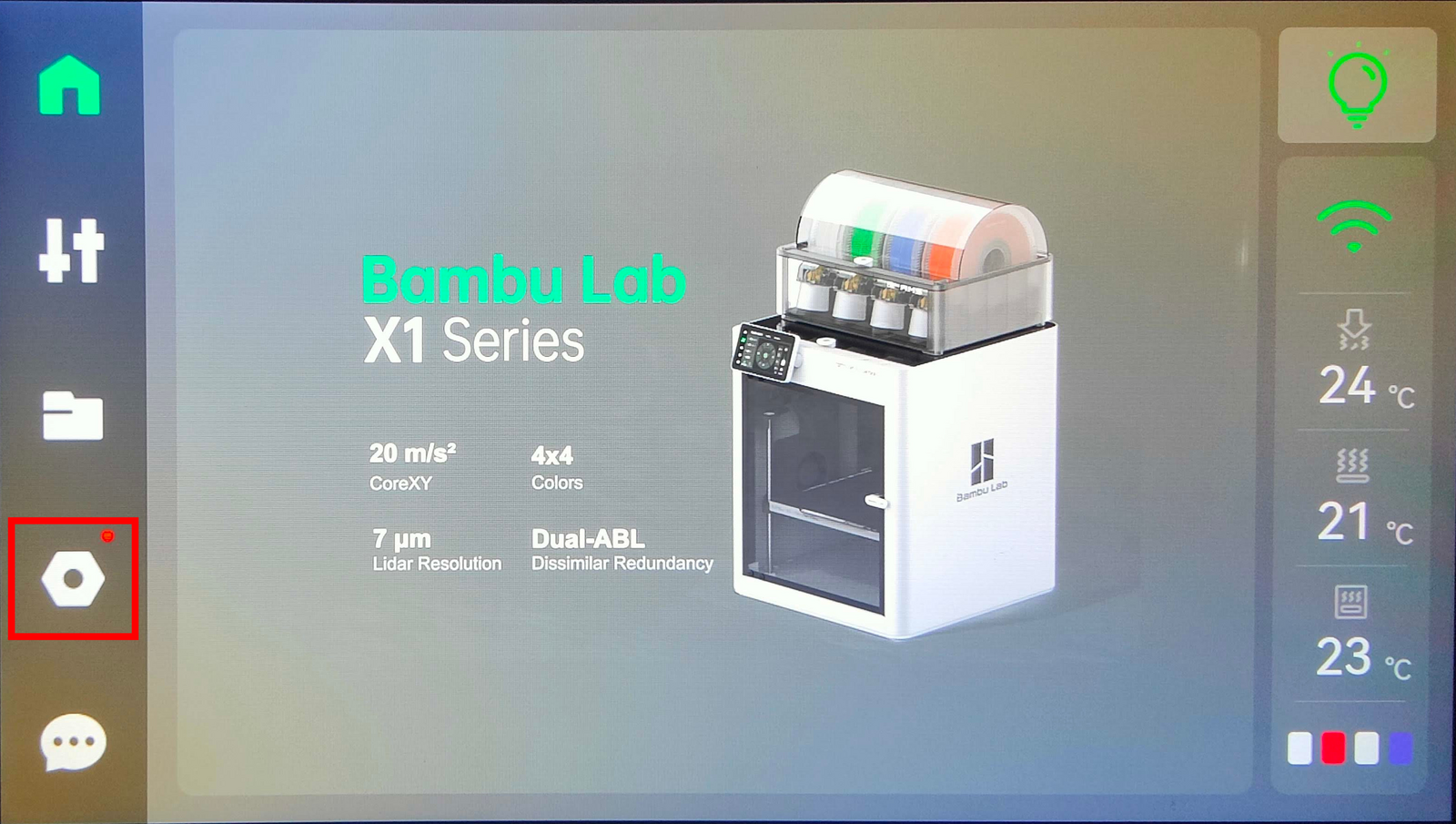
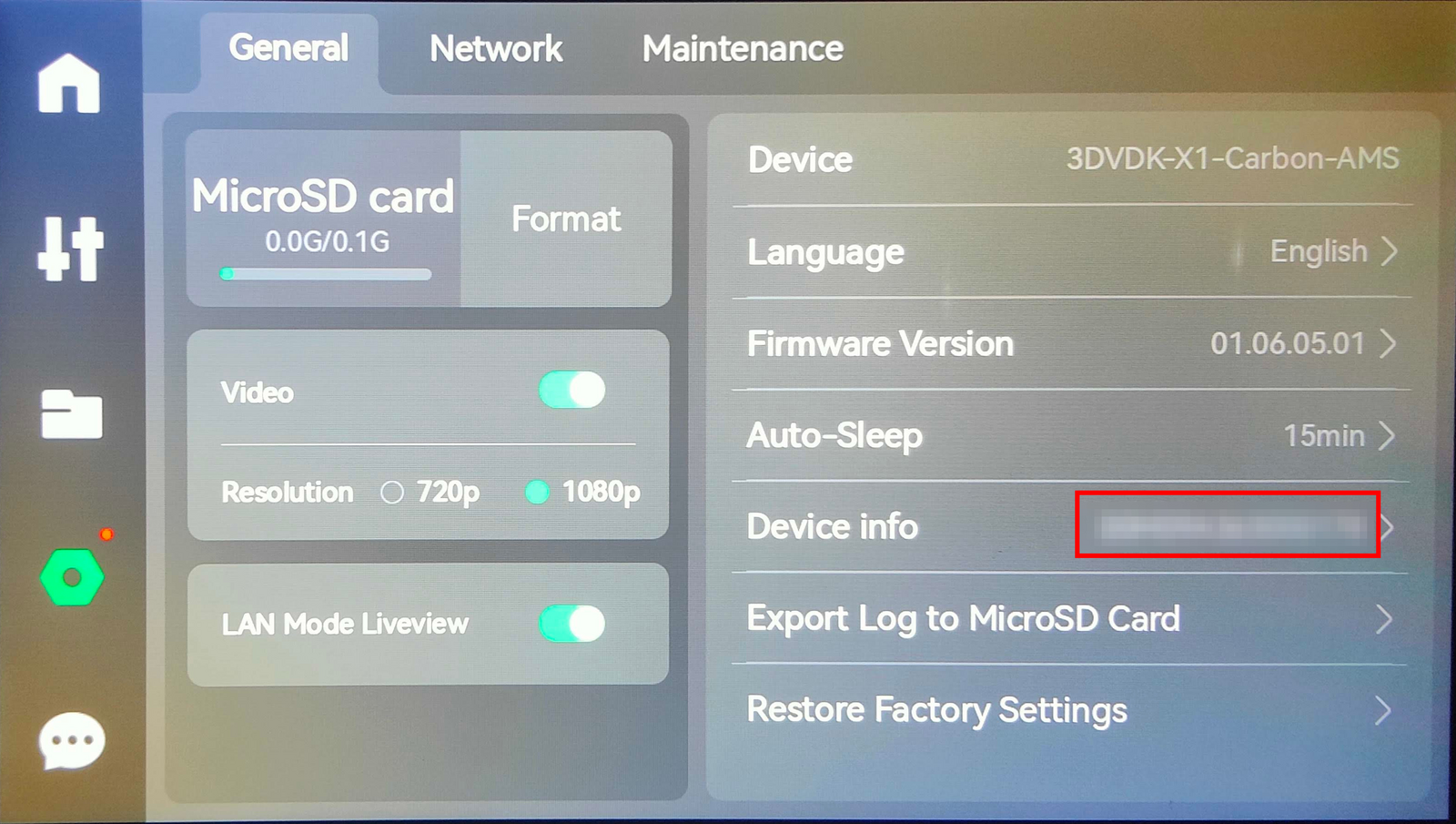
2. In the general tab, you should see the serial number next to the text "Device Info":
Gathering setup information on P1P and P1S
Follow these steps to find the following information:
- Printer's IP address
- Printer's access code
- Printer's serial number
Finding IP Address and Access Code
These steps will guide you through how you find your printer's IP address and access code. These can be used to link your Bambu P1P and P1S to the SimplyPrint Bamub Lab integration.
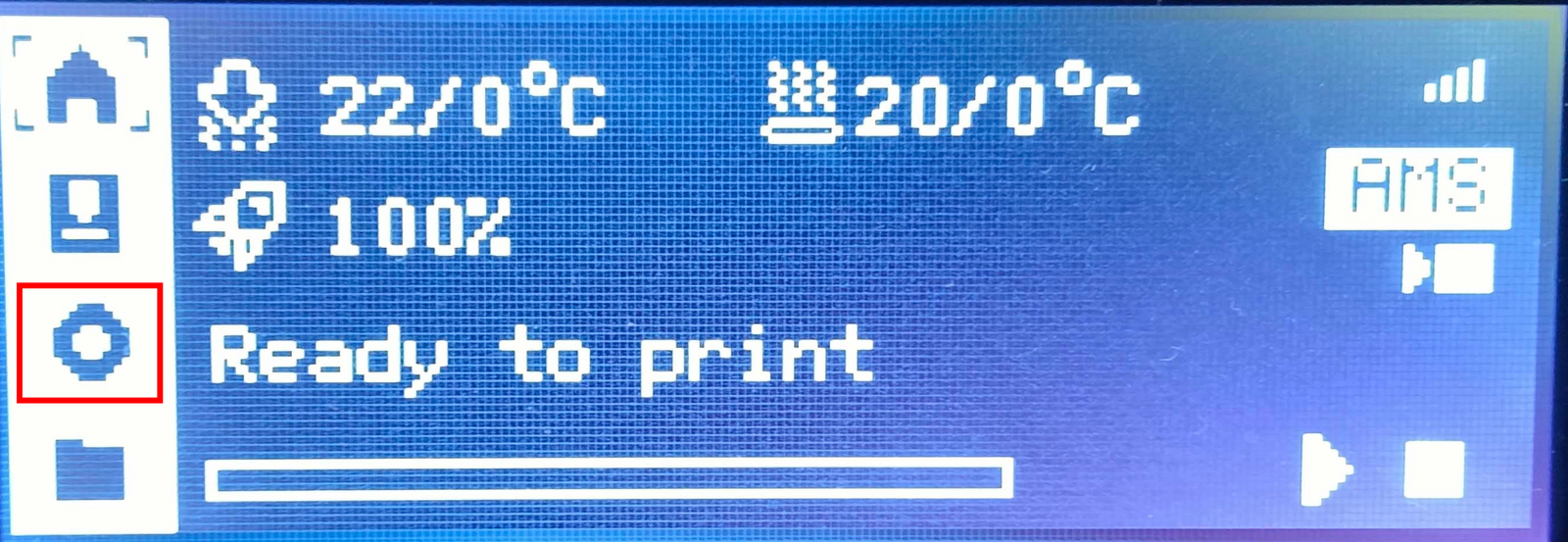
1. Navigate to the settings page on the screen:
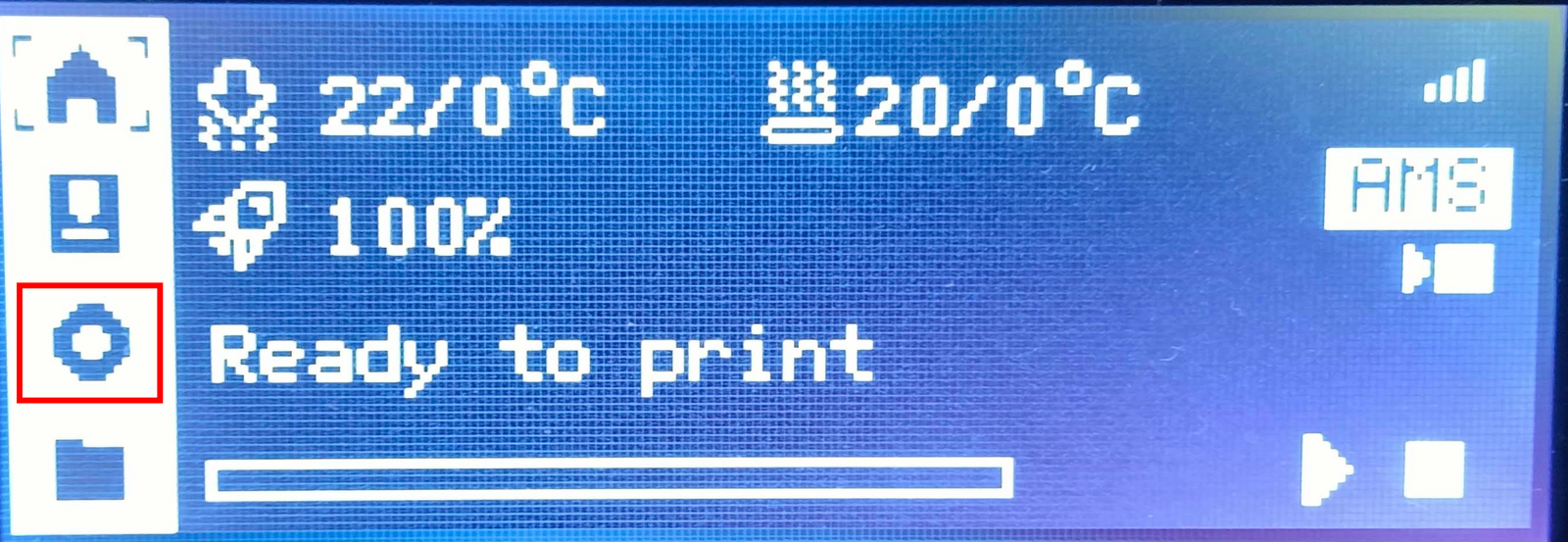
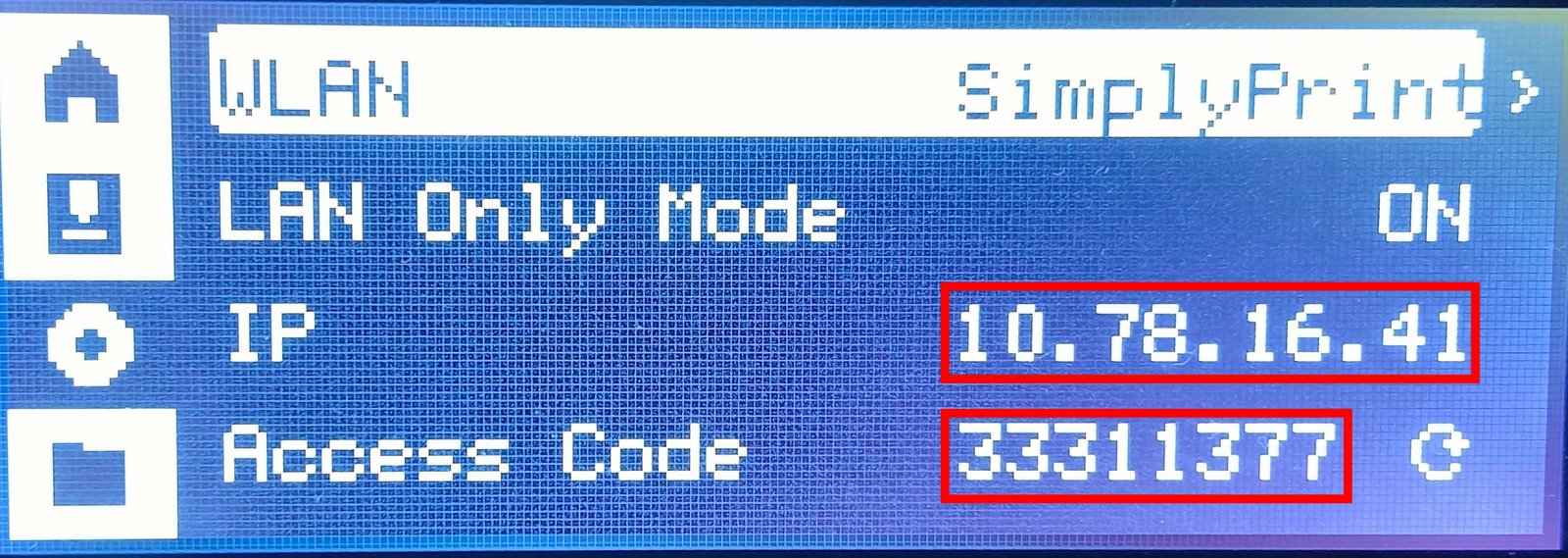
2. From the settings page navigate into the WLAN settings. This can be done by pressing OK while hovering over the WLAN option.
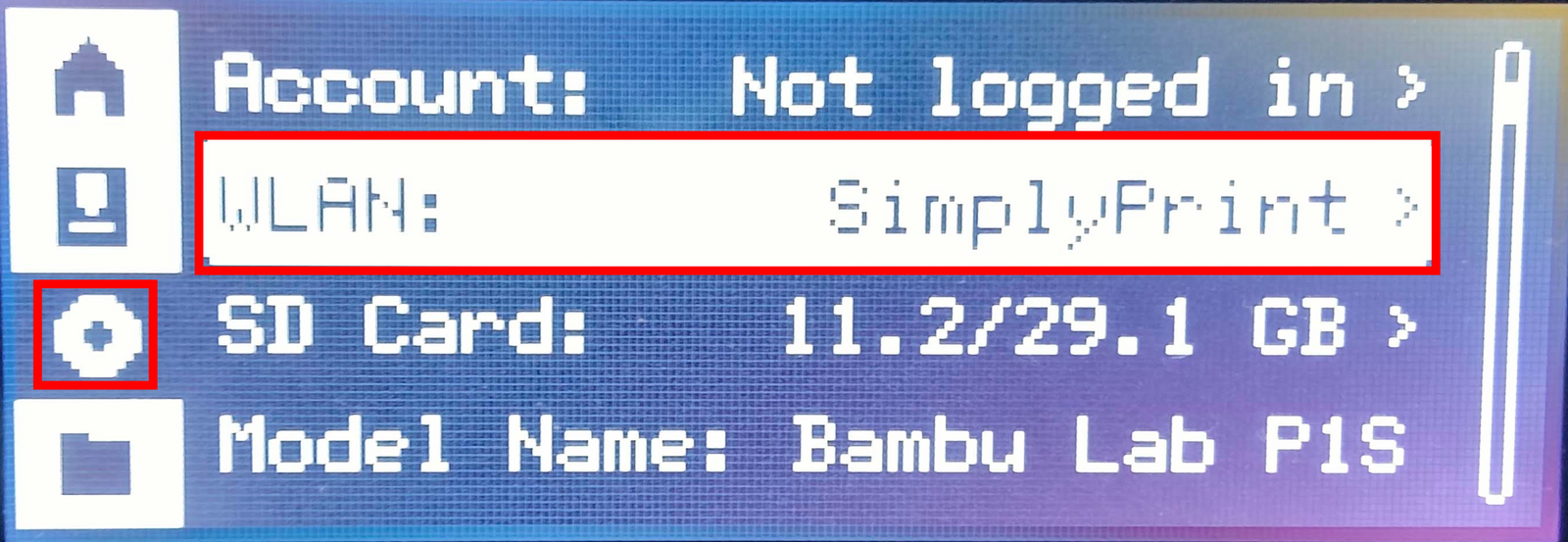
3. You should now see both your printer's IP as well as the access code:
Serial number
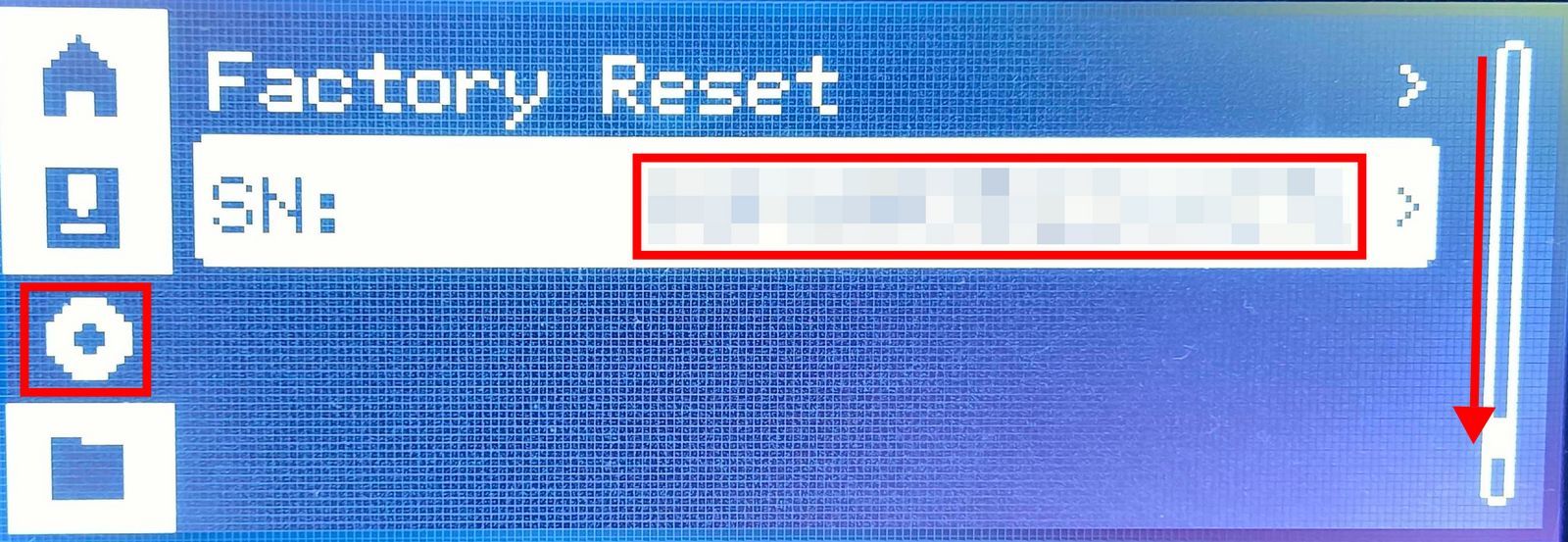
These steps will guide you through how you find your printer's serial number. This can be used to link your Bambu P1P and P1S to the SimplyPrint Bamub Lab integration.
1. First navigate into the settings page.
2. Press down until you get to the bottom of the settings. Here you will see the printer's serial number.
Gathering setup information on A1 and A1 Mini
Follow these steps to find the following information:
- Printer's IP address
- Printer's access code
- Printer's serial number
Finding IP Address and Access Code
These steps will guide you through how you find your printer's IP address and access code. These can be used to link your Bambu A1 and A1 Mini to the SimplyPrint Bamub Lab integration.
1. Navigate to the settings page from the home screen:
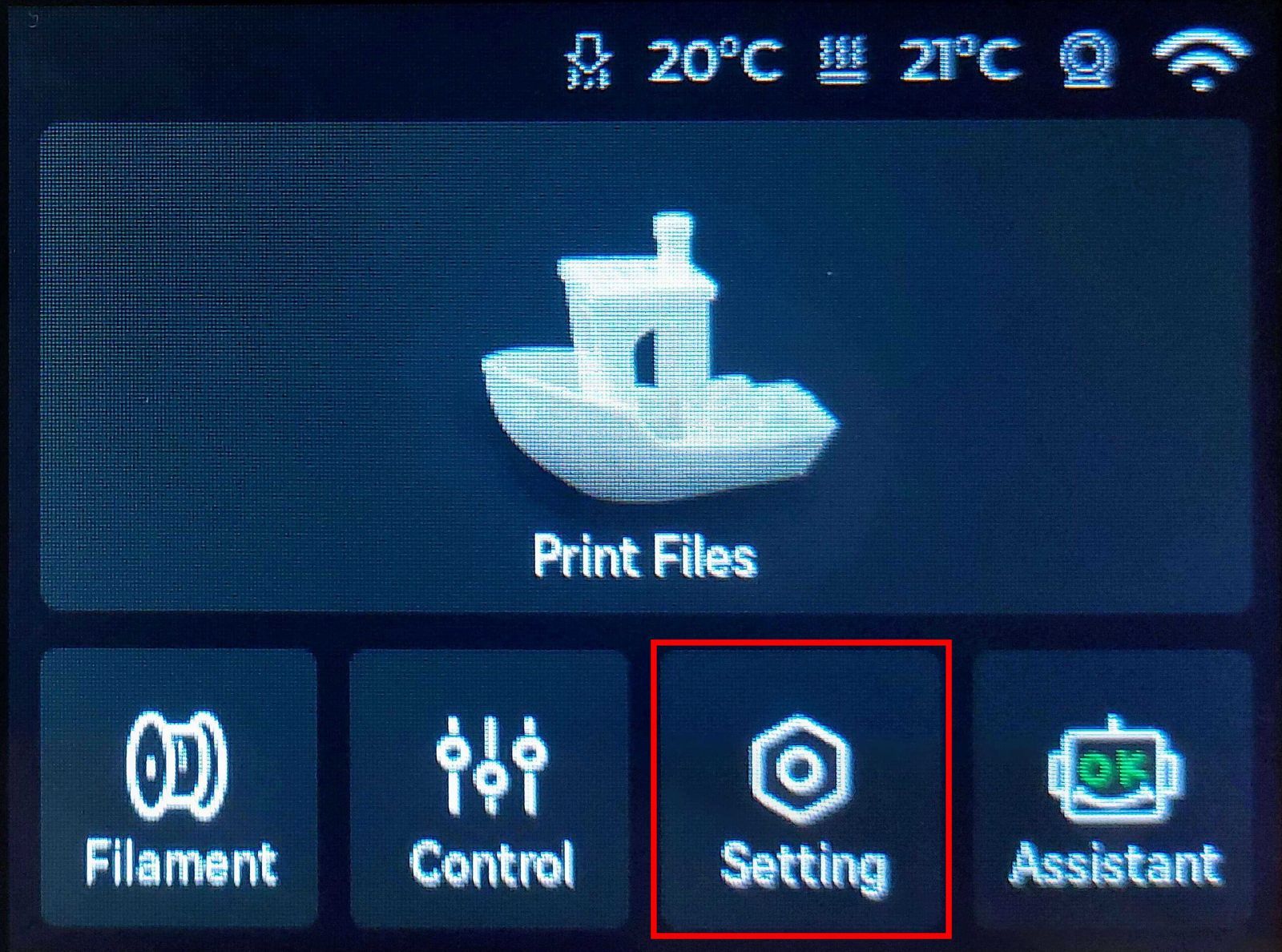
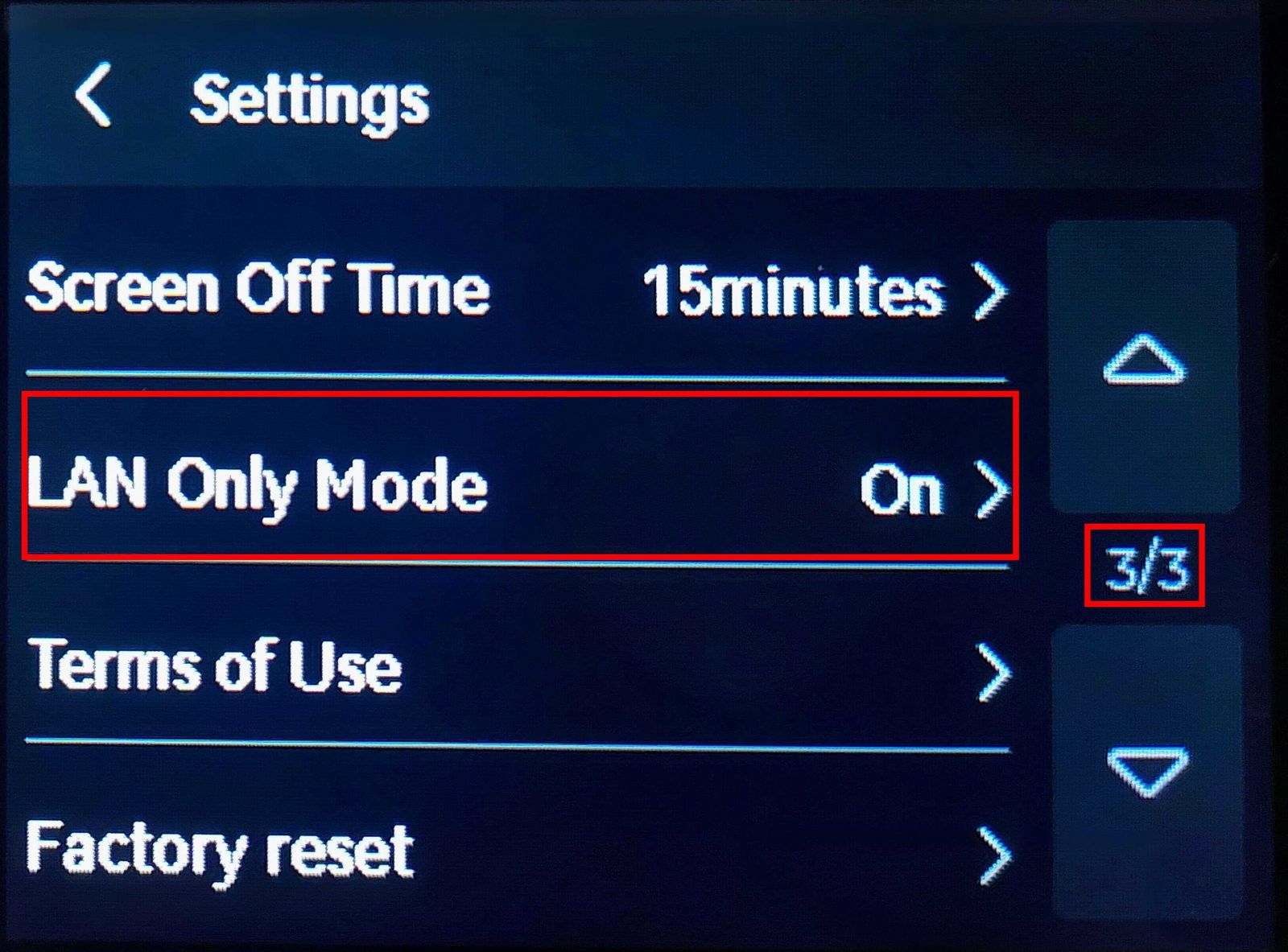
2. Navigate to page 3 and press "LAN Only Mode":
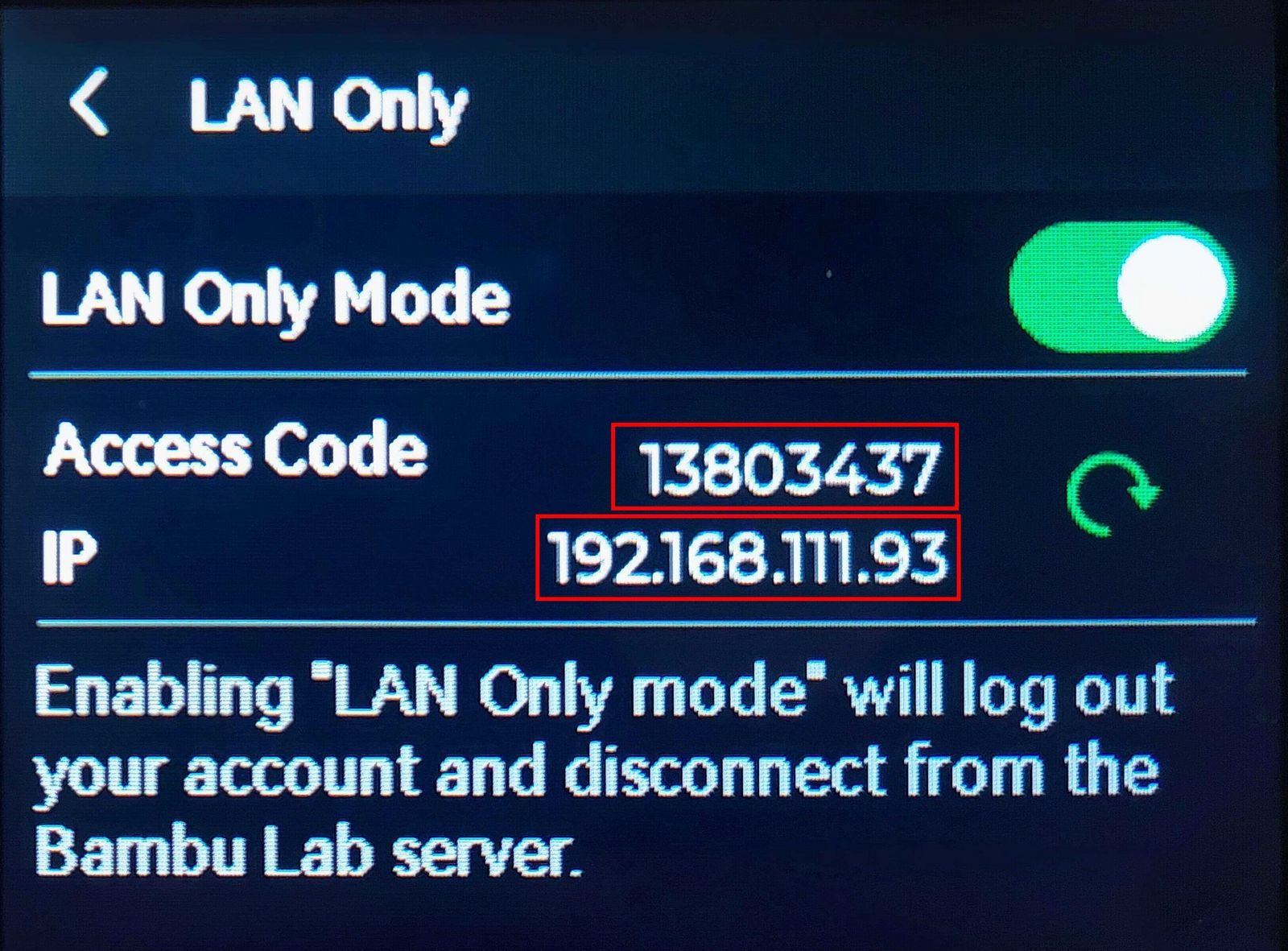
3. You should now see both your printer's IP as well as the access code:
If there is no Access Code, please enable LAN Only mode first
Serial number
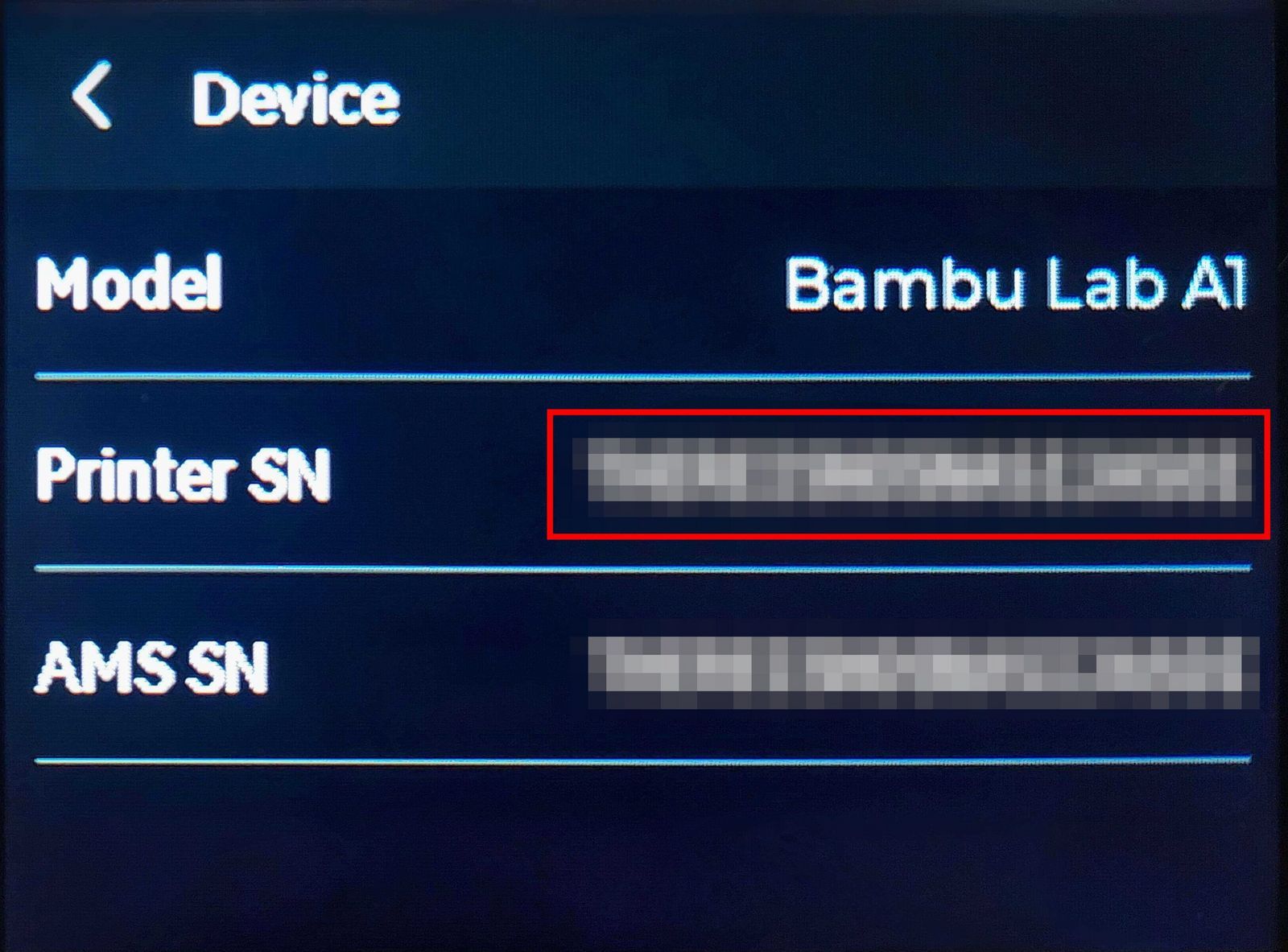
Follow these steps to find the serial number of your Bambu A1 and A1 Mini.
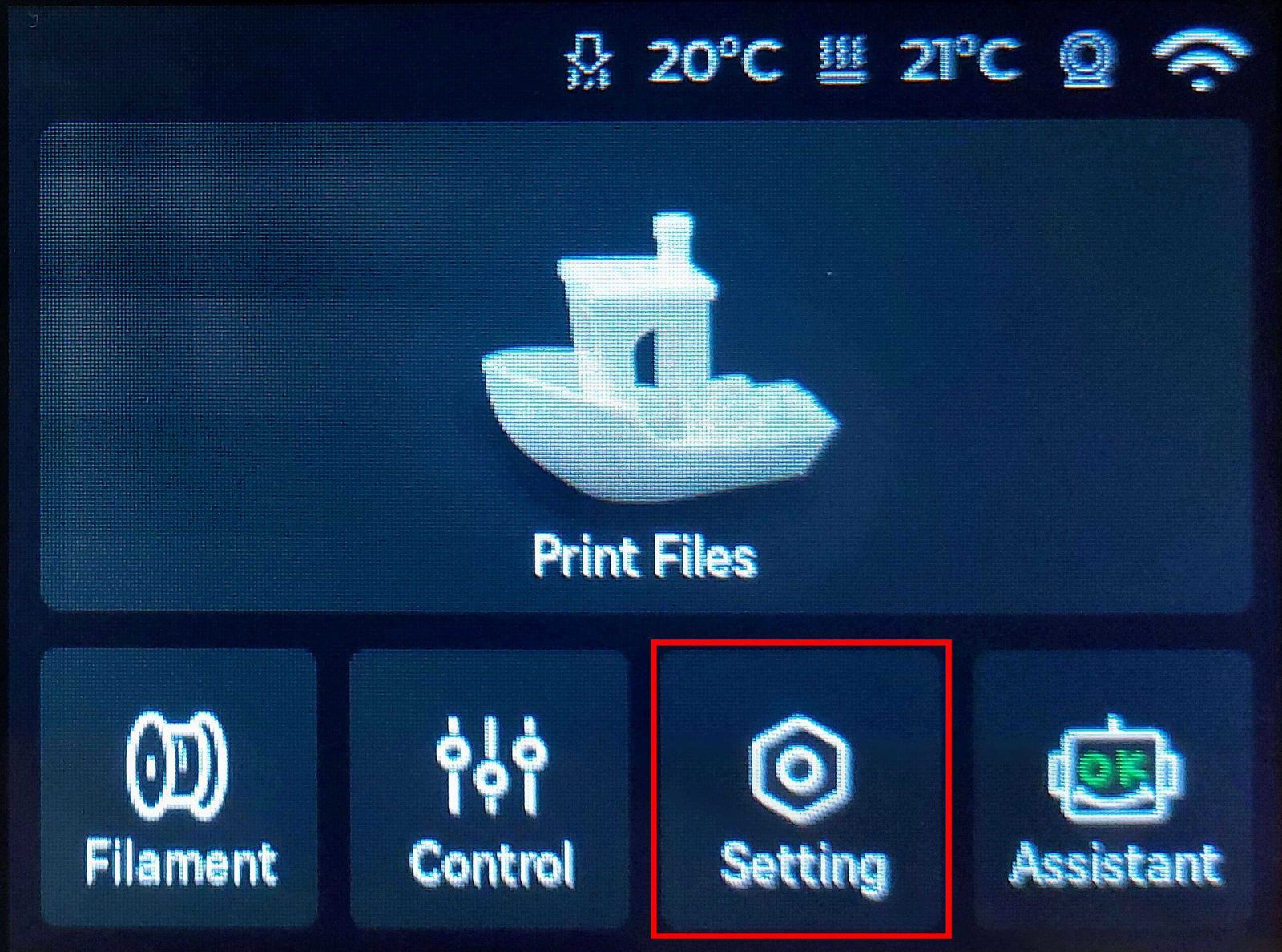
1. Navigate to the settings page from the home screen:
2. Navigate to page 2 and press "Device":
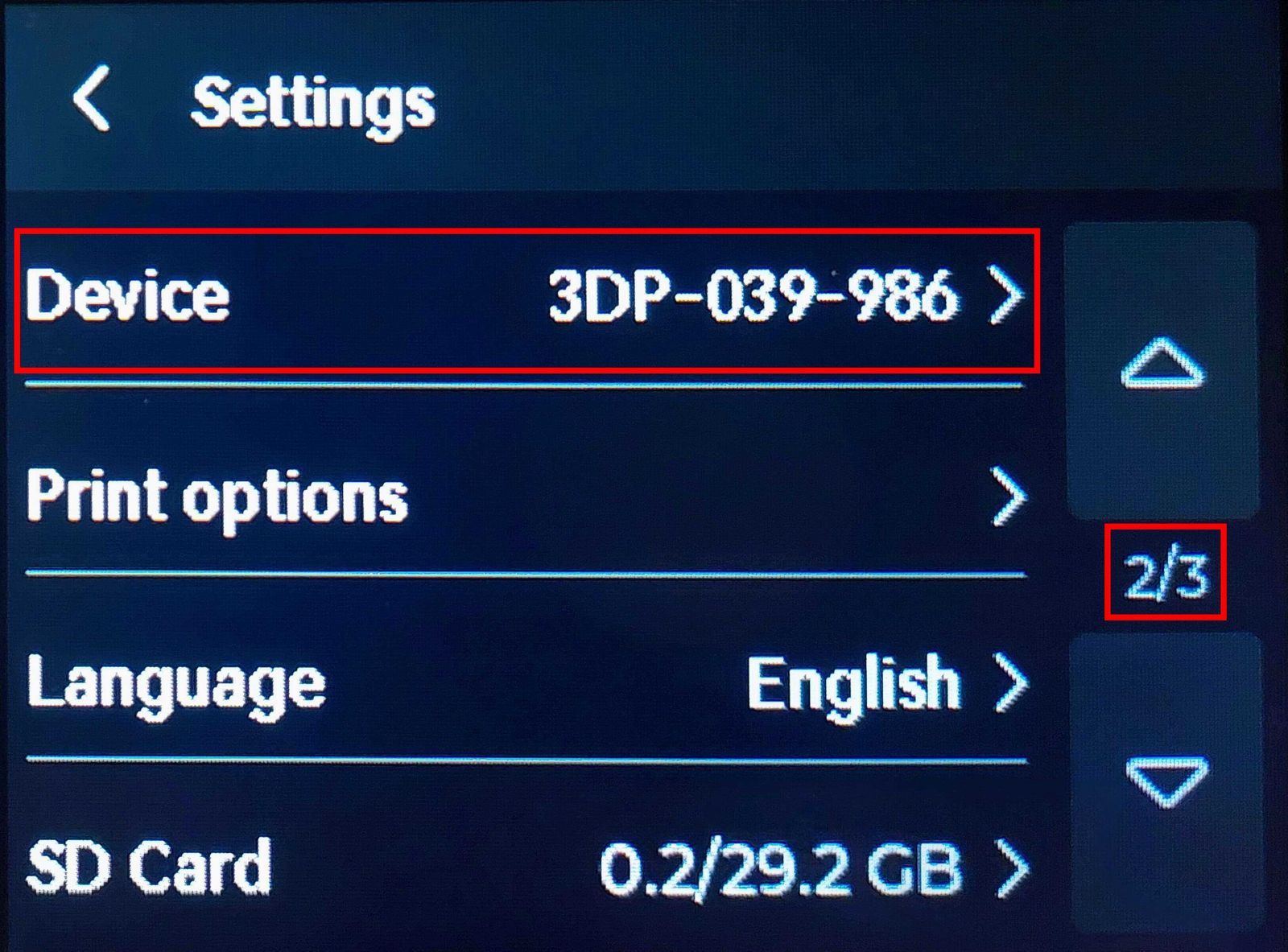
3. You should now see your printer's serial number:
Still need help? Ask the team