Filament label generation: Direct print with DYMO printers
Written By Albert Møller Nielsen
Last updated 6 months ago
Filament label generation: Direct print with DYMO printers
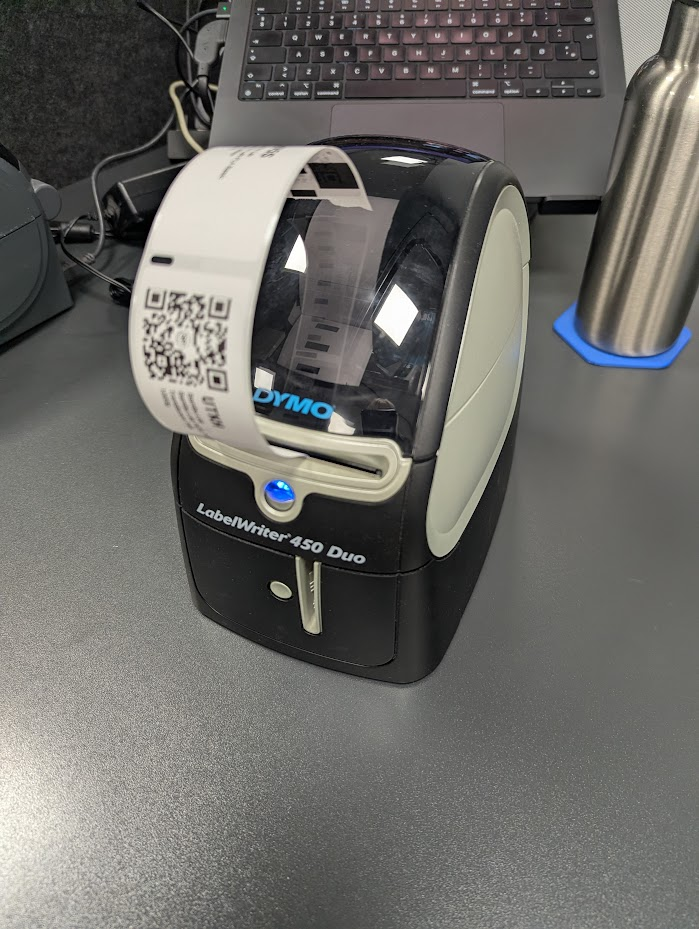
DYMO LabelWriter printers are popular desktop label printers - compact, affordable, and perfect for office and home use. With SimplyPrint's direct print feature, you can send filament labels straight to your DYMO printer from your browser.
Direct printing requires Pro plan
What is direct print?
Direct print sends labels from SimplyPrint directly to your connected DYMO printer. No file downloads, no switching apps - just click "Direct print" and your labels start printing.
Benefits:
- Streamlined workflow - print without leaving SimplyPrint
- Print single labels or batches instantly
- Works with DYMO LabelWriter printers
- Perfect for home labs and small makerspaces
Direct print is only available on desktop computers (Windows and macOS). The option is hidden on mobile devices.
Requirements
Before you can use direct print with DYMO, make sure you have:
DYMO Connect or DYMO Web Service
You need DYMO Connect (or DYMO Label Software) installed on your computer. This includes the DYMO Web Service that enables web applications to communicate with your printer.
Download: DYMO Connect (free from dymo.com)
Supported operating systems
DYMO Web Service works on Windows and macOS only. Linux and mobile devices are not supported.
Safari users: Safari requires extra steps to connect to DYMO Web Service. If you're using Safari, see Safari not connecting to DYMO, Zebra, or NFC Agent before continuing.
Compatible DYMO printers
SimplyPrint works with DYMO LabelWriter printers, including:
Current models:
- LabelWriter 550
- LabelWriter 550 Turbo
- LabelWriter 5XL
- LabelWriter 450 series (450, 450 Turbo, 450 Duo, 450 Twin Turbo)
Older models:
- LabelWriter 400 series
- LabelWriter 320, 330
DYMO LabelManager (handheld) printers are not supported - only LabelWriter desktop models work with direct print.
Supported label sizes
SimplyPrint includes presets for common DYMO label sizes:
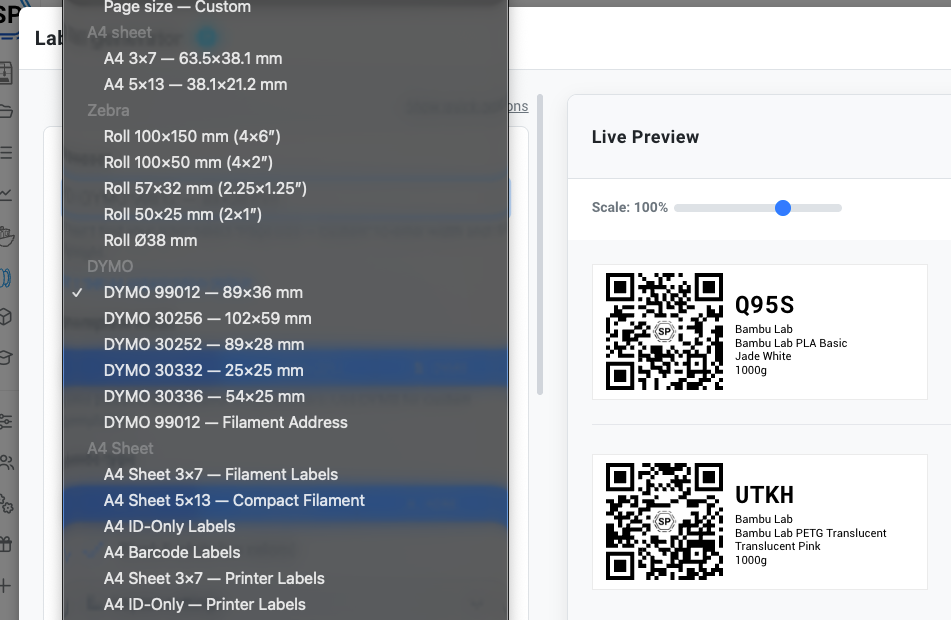
DYMO labels use specific product codes. Make sure you're using compatible label rolls for your preset.
Setup
Step 1: Install DYMO Connect
- Download DYMO Connect from dymo.com/support
- Run the installer for your operating system
- Follow the installation prompts
- The DYMO Web Service starts automatically when installation completes
Step 2: Connect your printer
- Connect your DYMO LabelWriter via USB
- Make sure the printer is powered on
- Open DYMO Connect to verify it detects your printer
- Print a test label to confirm it works
Step 3: Open the label generator
- Go to SimplyPrint on the web
- Open the Filament Manager
- Select one or more spools and click Labels
- Choose a DYMO preset from the dropdown (e.g., "DYMO 99012")
Printing your first label
- Design your label in the label generator
- Click the Direct print button in the bottom right
- SimplyPrint connects to DYMO Web Service and detects your printer
- Select your printer from the dropdown (a green dot indicates it's connected)
- Click Send to DYMO
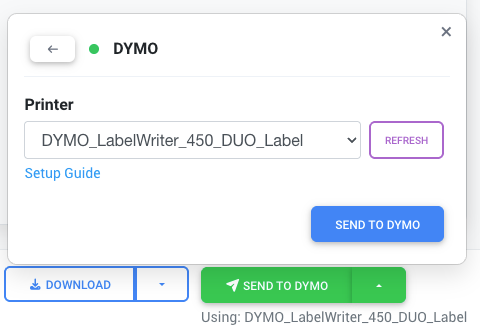
Your label prints immediately. Once configured, SimplyPrint remembers your printer - you'll see a Send to DYMO button for quick one-click printing.
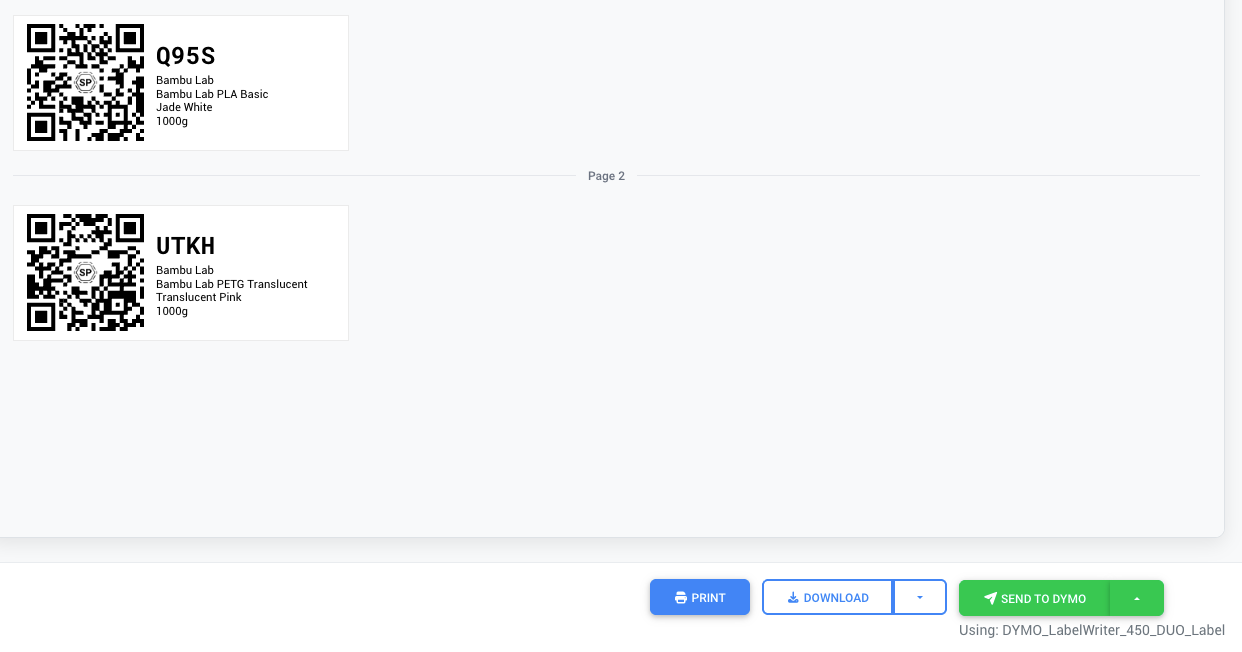
If your printer doesn't appear, check that DYMO Connect is running and your printer is connected. See the troubleshooting section below.
Alternative: Download DYMO files
If you can't use direct print - or prefer to print through DYMO Connect - you can download your labels as DYMO files.
- Click the DYMO download button
- The file downloads in DYMO's native format
You can then open this file in DYMO Connect and print from there. This is useful if:
- You need to print on a different computer
- DYMO Web Service isn't working
- You want to save labels for later
How visual mode prints
By default, when you use the visual label designer (Designer mode) and click "Direct print", SimplyPrint:
- Renders your label as a high-resolution image
- Converts it to the appropriate format for DYMO
- Sends it to your printer via DYMO Web Service
This works with any label design - including custom fonts, colors, and QR codes.
Advanced: DYMO XML templates
For maximum control over your label layout, you can use DYMO's native XML template format. This gives you access to all of DYMO Connect's layout features.
When to use DYMO templates
- You want to use DYMO Connect's built-in label designer
- You have existing DYMO templates (.dymo files)
- You need precise control over text positioning and formatting
- You want to use DYMO-specific features like address formatting
Enabling DYMO template mode
- Select a DYMO preset in the label generator
- Find the Template mode option in the settings panel
- Click DYMO to switch from the visual designer to DYMO XML mode
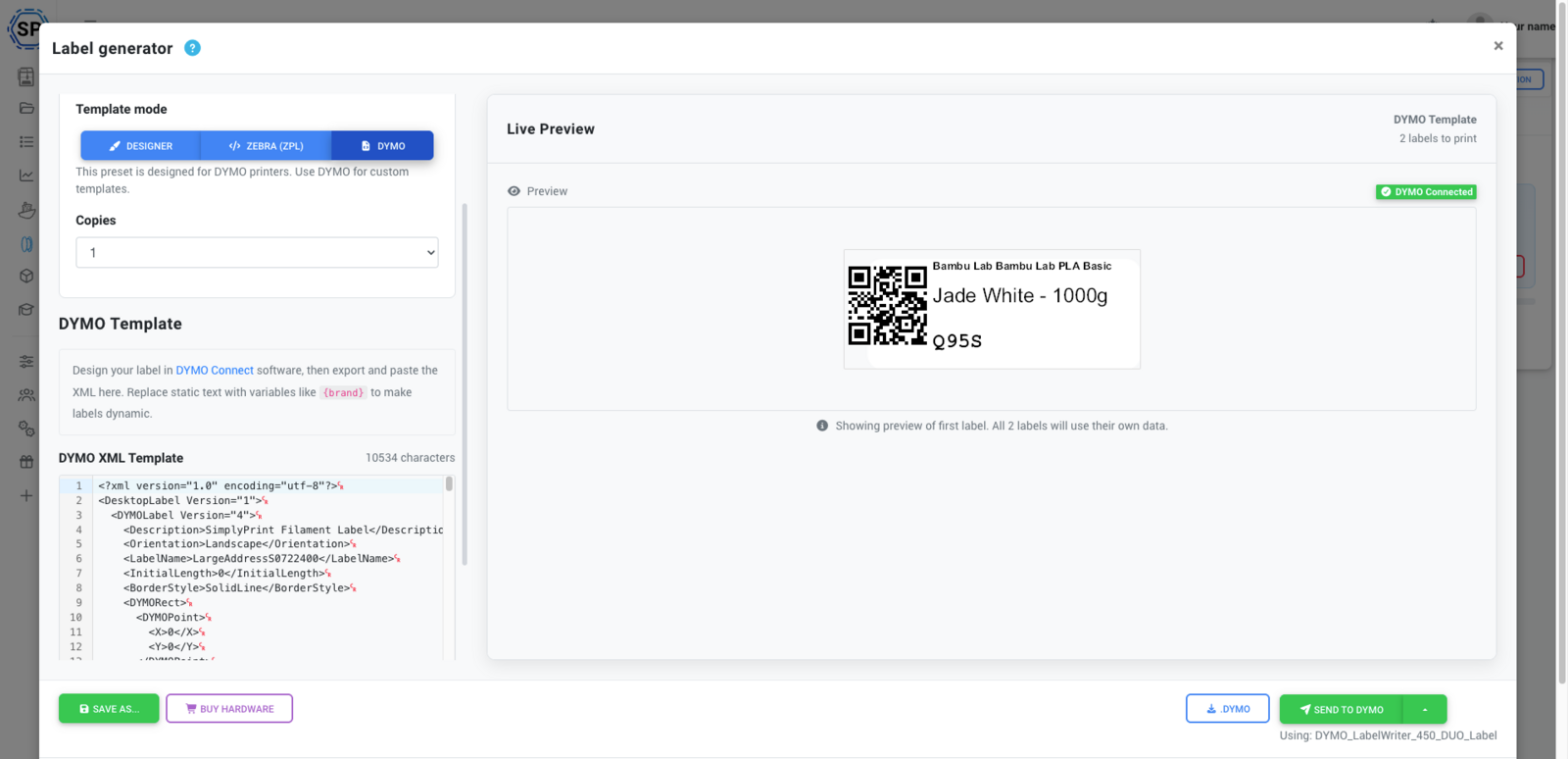
The editor shows a note about designing labels in DYMO Connect, then exporting the XML.
Creating DYMO templates
The recommended workflow:
- Open DYMO Connect on your computer
- Design your label using DYMO's visual tools
- Export the label as XML (File → Export)
- Paste the XML into SimplyPrint's template editor
- Replace static text with variables like
{brand}or{shortId}
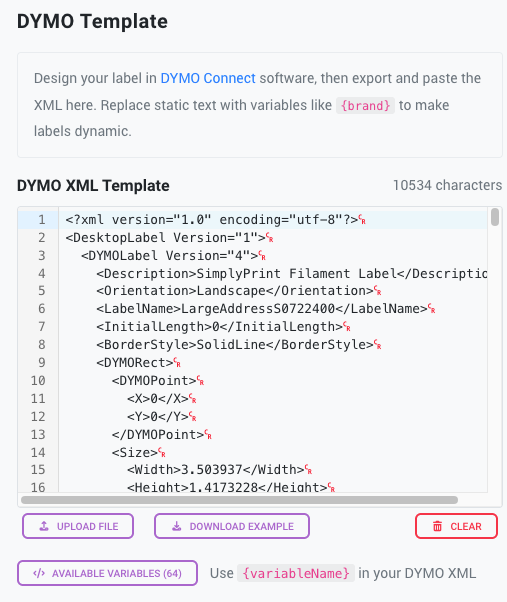
You can use the Upload file button to load existing templates, or Download example to get a starting template.
Variable interpolation
Use dynamic variables in your DYMO templates with the {variableName} syntax. SimplyPrint replaces these with actual spool data when printing.
Replace any text in your DYMO template XML:
Bambu Lab
With a variable:
{brand}Click Available variables to see all 64+ variables you can use, including {shortId}, {brand}, {material}, {color}, {gramsTotal}, {url}, and more.
Live preview
SimplyPrint shows a live preview of your DYMO template with actual filament data:
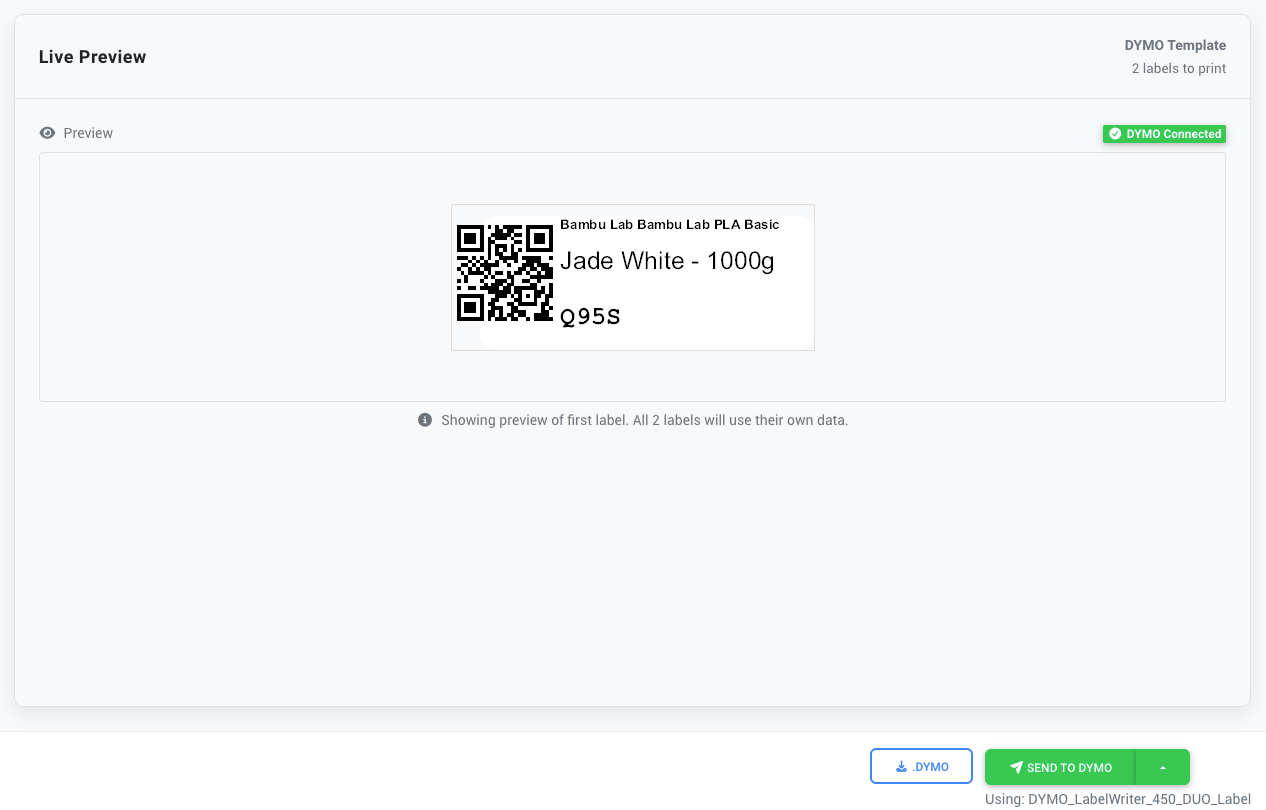
The preview updates as you edit the template, so you can see exactly how your labels will look.
See it in action
Troubleshooting
DYMO Web Service not running
Problem: SimplyPrint shows a warning that the DYMO software isn't detected.
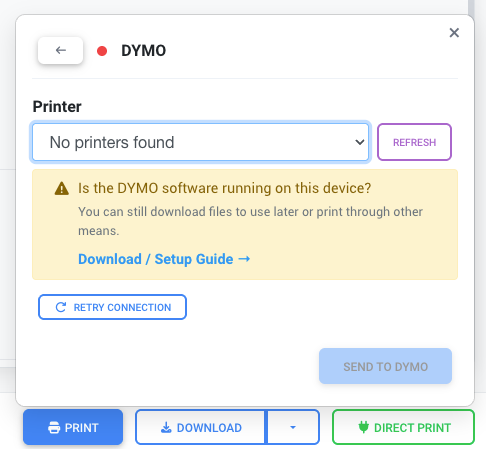
Solutions:
- Make sure DYMO Connect is installed
- Open DYMO Connect to start the web service
- Click Retry connection after starting the software
- Restart your web browser if the connection still fails
- Check that the DYMO Web Service is running in your system services
You can still download labels as PDF, PNG, or DYMO files even if the web service isn't running.
Safari won't connect to DYMO Web Service
Problem: You're using Safari and SimplyPrint can't detect DYMO Web Service, even though it's running.
Solution: Safari requires you to manually trust the local certificate used by DYMO Web Service. See our dedicated guide: Safari not connecting to DYMO, Zebra, or NFC Agent
Alternatively, use Chrome, Firefox, or Edge - these browsers work without extra configuration.
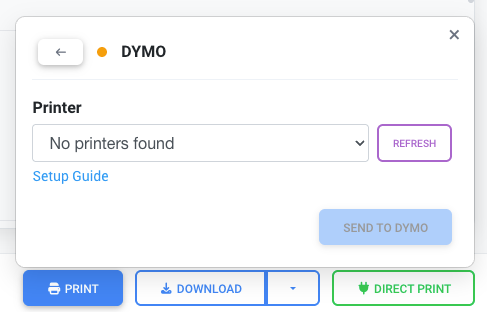
No printers found
Problem: DYMO Web Service is running (yellow dot) but no printers appear in the list.
Solutions:
- Check that your printer is connected via USB and powered on
- Click Refresh to scan for printers again
- Open DYMO Connect and verify the printer appears there
- Try disconnecting and reconnecting the USB cable
- Restart the DYMO Web Service
Label size mismatch
Problem: Labels are printing at the wrong size or getting cut off.
Solutions:
- Verify the preset matches your physical label size
- Check that you're using the correct DYMO label roll
- Run a label calibration in DYMO Connect
- Try a different preset if the dimensions don't match
Printing blank or faded
Problem: Labels come out blank or very faint.
Solutions:
- Check that labels are loaded correctly (print side facing the correct direction)
- Verify you're using genuine DYMO labels (third-party labels may not work well)
- Clean the print head using DYMO's cleaning card
- Check if the label roll is exhausted
Print quality issues
Problem: Labels look blurry or pixelated.
Solutions:
- Use DYMO template mode instead of visual designer for sharper text
- Increase text size for better readability
- Simplify the design (fewer elements print clearer)
- Make sure your label size matches the preset
Related articles
Still need help? Ask the team