The Filament Label Generator feature: organize your filament inventory
Written By Albert Møller Nielsen
Last updated 6 months ago
The Filament Label Generator feature: organize your filament inventory
Create professional labels for your filament spools with QR codes, barcodes, and custom text. The label generator lets you design, preview, and print labels directly from your filament inventory - helping you keep your spools organized and easily scannable.
Some label generator features require specific plans. See the feature breakdown below.
The full label generator - with all settings, presets, and customization options - is available on web. The iOS and Android apps support generating labels using your saved presets.
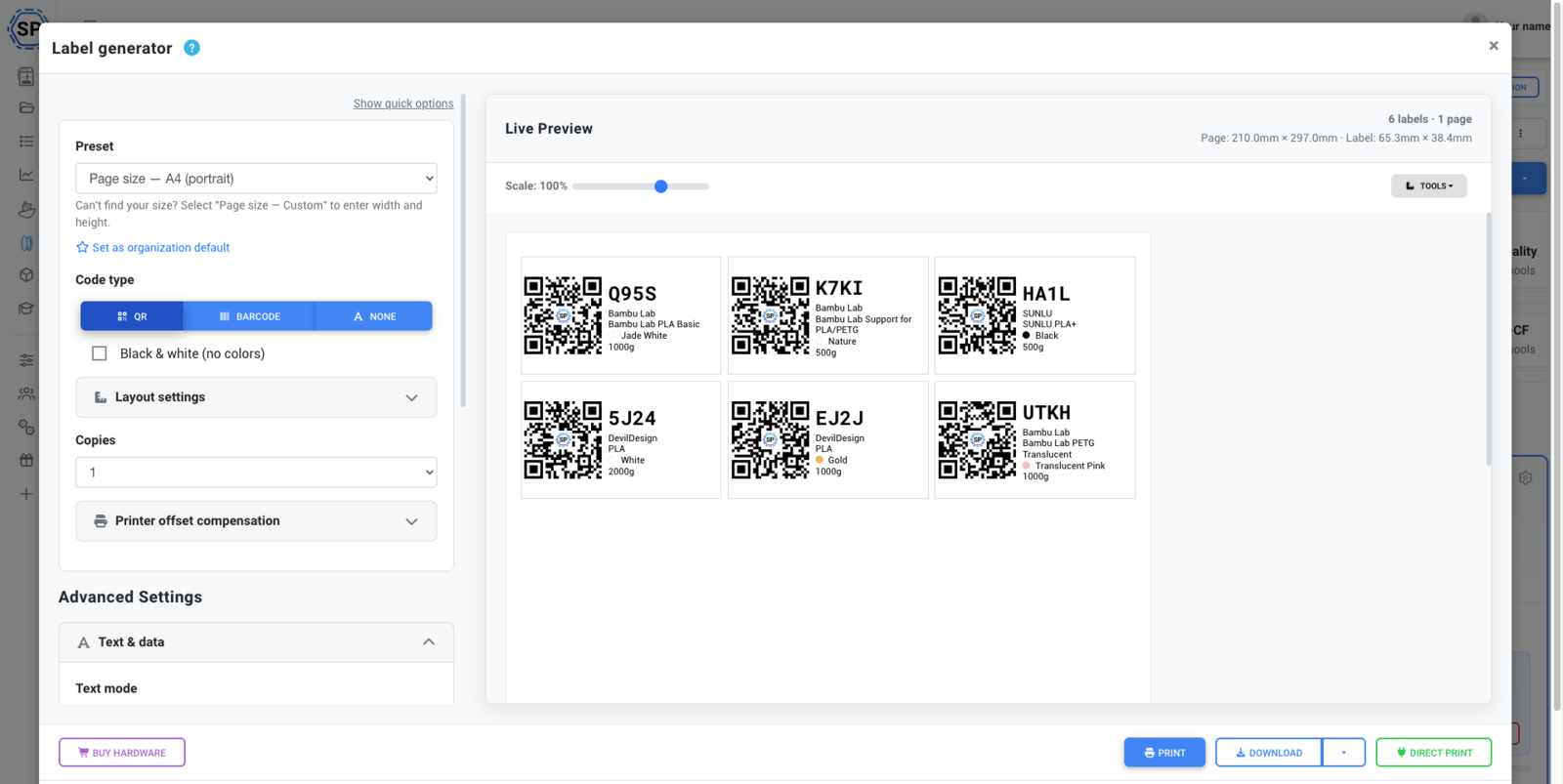
What you can do with the label generator
- Generate QR codes that link directly to your filament's page in SimplyPrint - scan with your phone to see all details
- Add barcodes using the filament's short ID for quick identification
- Display filament data like brand, material, color, weight, location, and more
- Use templates and variables to create custom label layouts
- Print directly to thermal label printers without downloading files
- Direct print with Zebra printers
- Direct print with DYMO printers
- Download as PDF or PNG for printing on regular printers or label sheets
Opening the label generator
- Go to Filament in the left menu
- Select one or more filament spools
- Click the Labels button in the toolbar
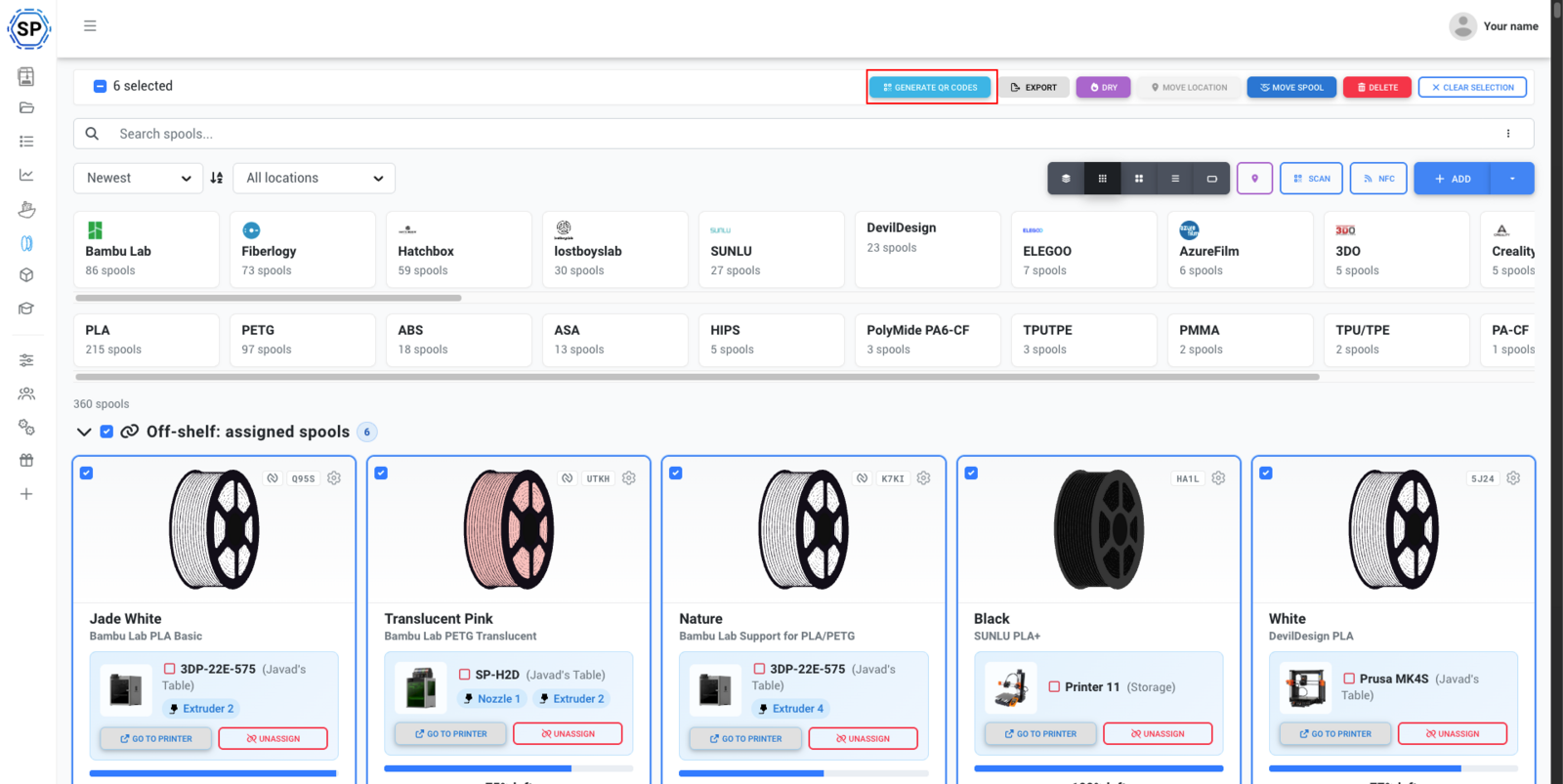
The label generator opens as a modal with a live preview on the left and settings on the right.
Generating labels on mobile
The SimplyPrint app for iOS and Android lets you generate labels directly from your phone. While the full label customization is only available on web, the app can generate labels using built-in presets or any custom presets you've saved via the web platform.
How to generate labels in the app
- Open the SimplyPrint app and tap the sidebar menu
- Go to Filament
- Tap on a filament spool to open the spool view
- Tap the Generate QR code button
- Select the label preset you want to use (defaults to your account default or last-used preset)
- Choose Download as PDF or Print/Share
The Print/Share option opens your phone's native share menu, letting you send the PDF to any app - including direct printing on compatible printers.
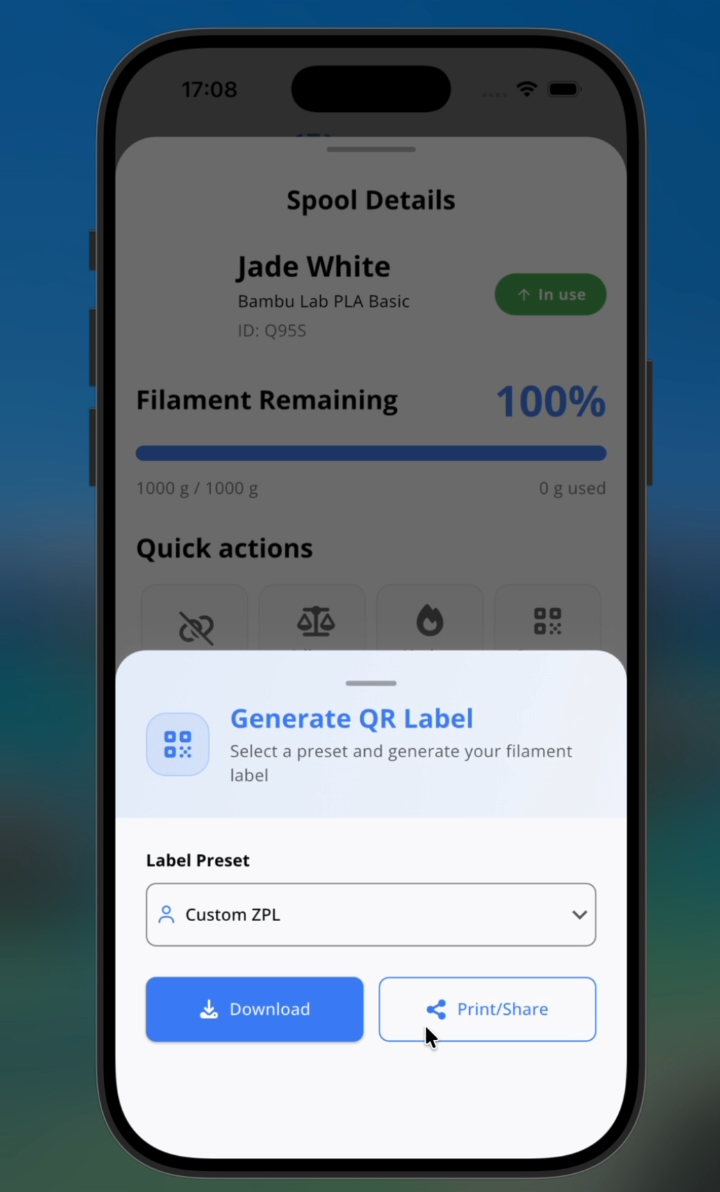
To create or edit label presets, use the web platform. Your saved presets will automatically be available in the mobile app.
Presets and page sizes
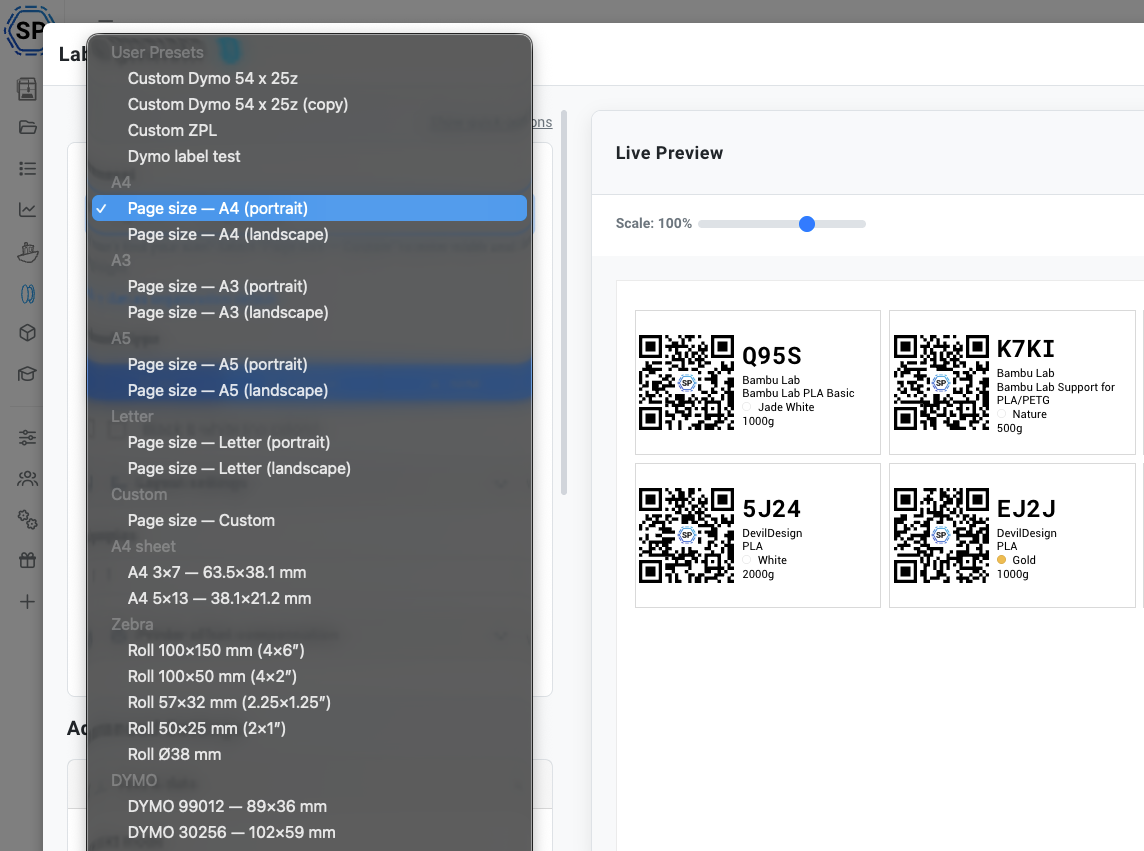
The label generator includes built-in presets for common label formats:
You can also create custom presets with your own dimensions and save them for future use.
Use the quick filter chips (A4/A5/A3, Letter/Legal, Labels, Custom) to narrow down the preset list.
Text and data settings
Control what information appears on your labels with four text modes:
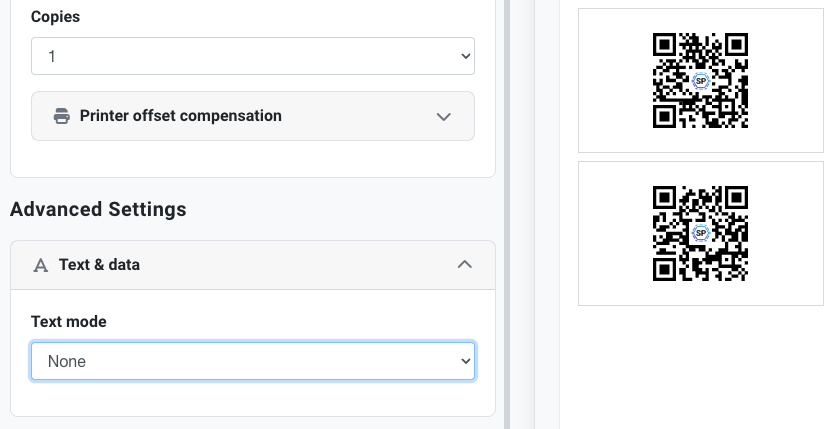
None
No text - only the QR code or barcode is shown. Useful for minimal labels or when space is tight.
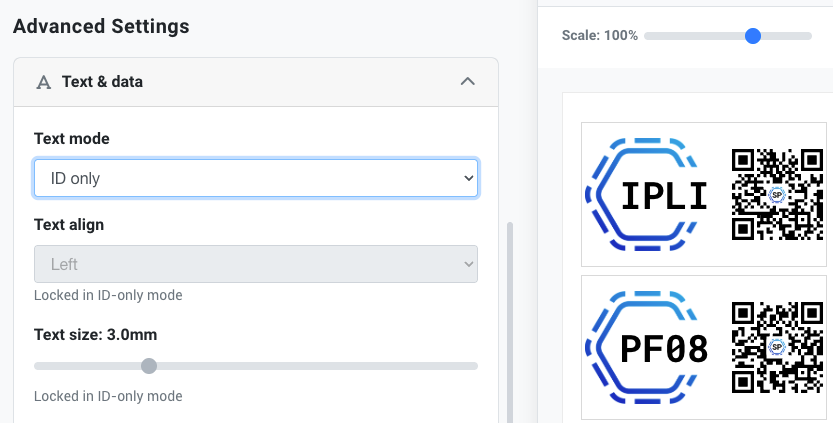
ID only
Shows only the filament's short ID in large text. The QR code is positioned to the right.
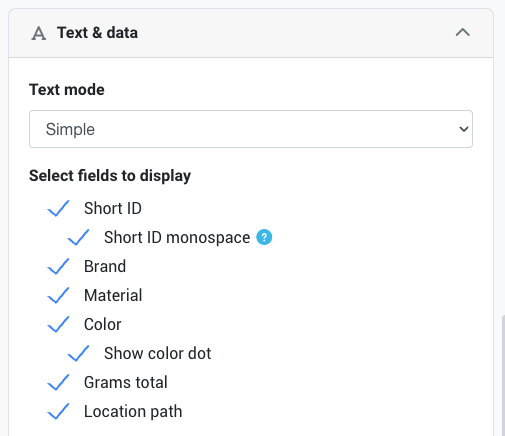
Simple
Pick from a list of fields to display:
- Short ID
- Brand
- Material
- Color (with optional color dot)
- Total grams
- Location path
Each field appears on its own line. You can toggle monospace font for the Short ID to make characters like 0 and O more distinct.
Custom
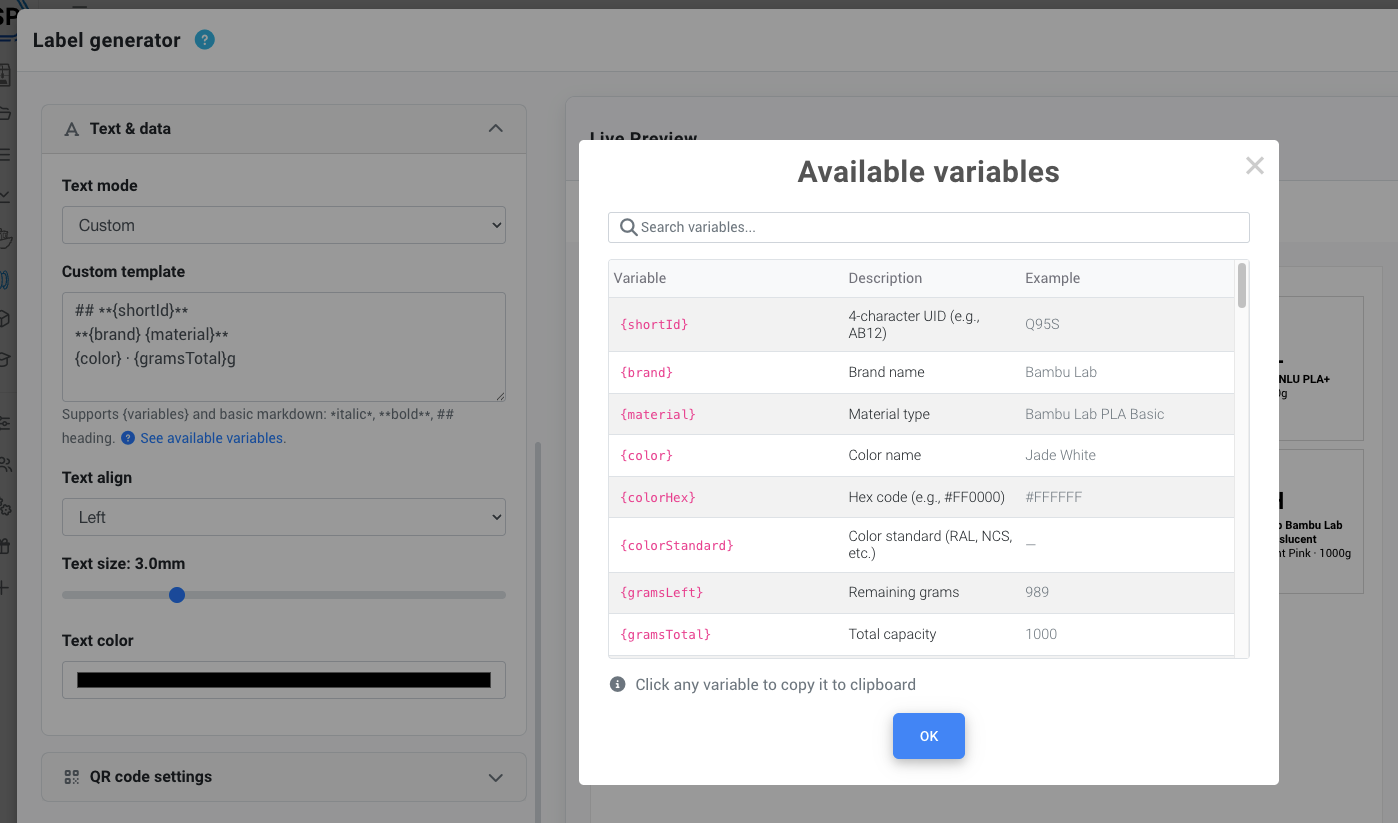
Write your own template using variables and basic markdown formatting. This gives you full control over the label layout.
Example custom template:
## **{shortId}****{brand} {material}**{color} · {gramsTotal}g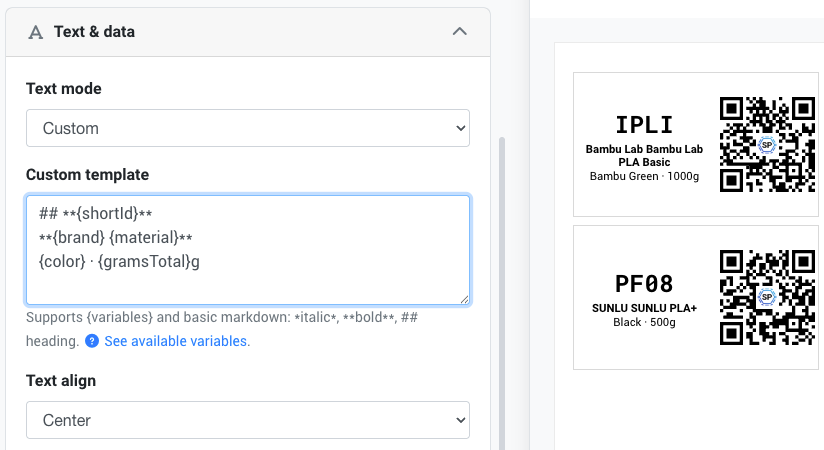
Variables
Variables let you insert filament data into your labels. Use them in curly braces like {variableName}.
Common variables
Temperature and cost variables
Date variables
Click See available variables in the custom template editor to view the full list with example values.
QR codes and barcodes
Code type
Choose between:
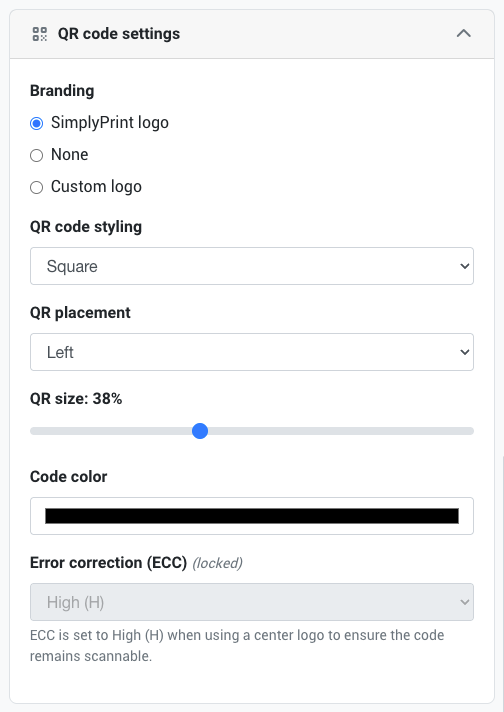
- QR code - Links to the filament's page in SimplyPrint. Scan with any phone camera.
- Barcode - Shows the filament's short ID. Useful for barcode scanners.
- None - Text only, no code.
QR code options
QR customization (removing the SimplyPrint logo, custom logos, styling, and colors) requires the Basic plan or higher.
When using a center logo, error correction is automatically set to High (H) to ensure the code remains scannable.
Barcode options
Choose from symbologies like Code 128 or Code 39. Adjust the barcode size to fit your label.
Layout settings
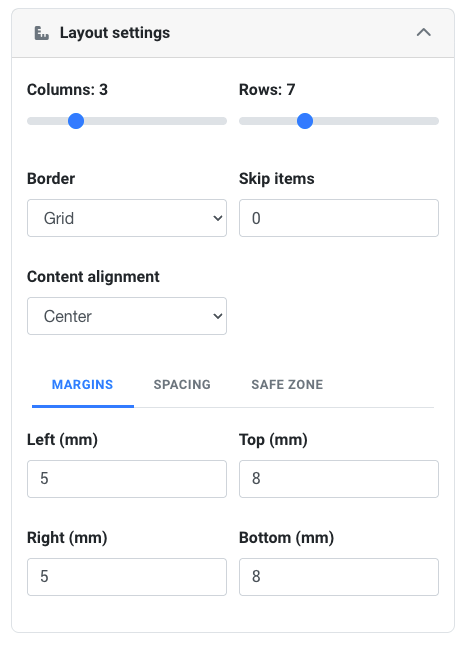
Fine-tune your label layout with these options:
Grid
- Columns and rows - How many labels per page
- Spacing - Gap between labels (in mm)
Margins
- Page margins - Distance from paper edge to first label
- Safe area - Padding inside each label cell
Other options
- Borders - Show grid lines, cell borders, or none
- Vertical align - Top, center, or bottom alignment within cells
- Black & white mode - Forces all colors to black for thermal printers
- Skip labels - Leave empty cells at the start (useful for partially-used label sheets)
- Copies - Print multiple copies of each label
Verifying dimensions
Use the Tools button in the live preview to verify your label dimensions before printing:
- Show rulers - Displays cm/inch rulers along the edges
- Show grid - Overlays a measurement grid
- Measure tool - Click two points to measure exact distances
The preview header shows page and label dimensions (e.g., "Page: 210.0mm × 297.0mm · Label: 63.5mm × 38.1mm").
If printed labels don't match the preview, the issue is usually your printer settings - not SimplyPrint. See Fixing label printing alignment issues for troubleshooting.
Printing your labels
Print from browser
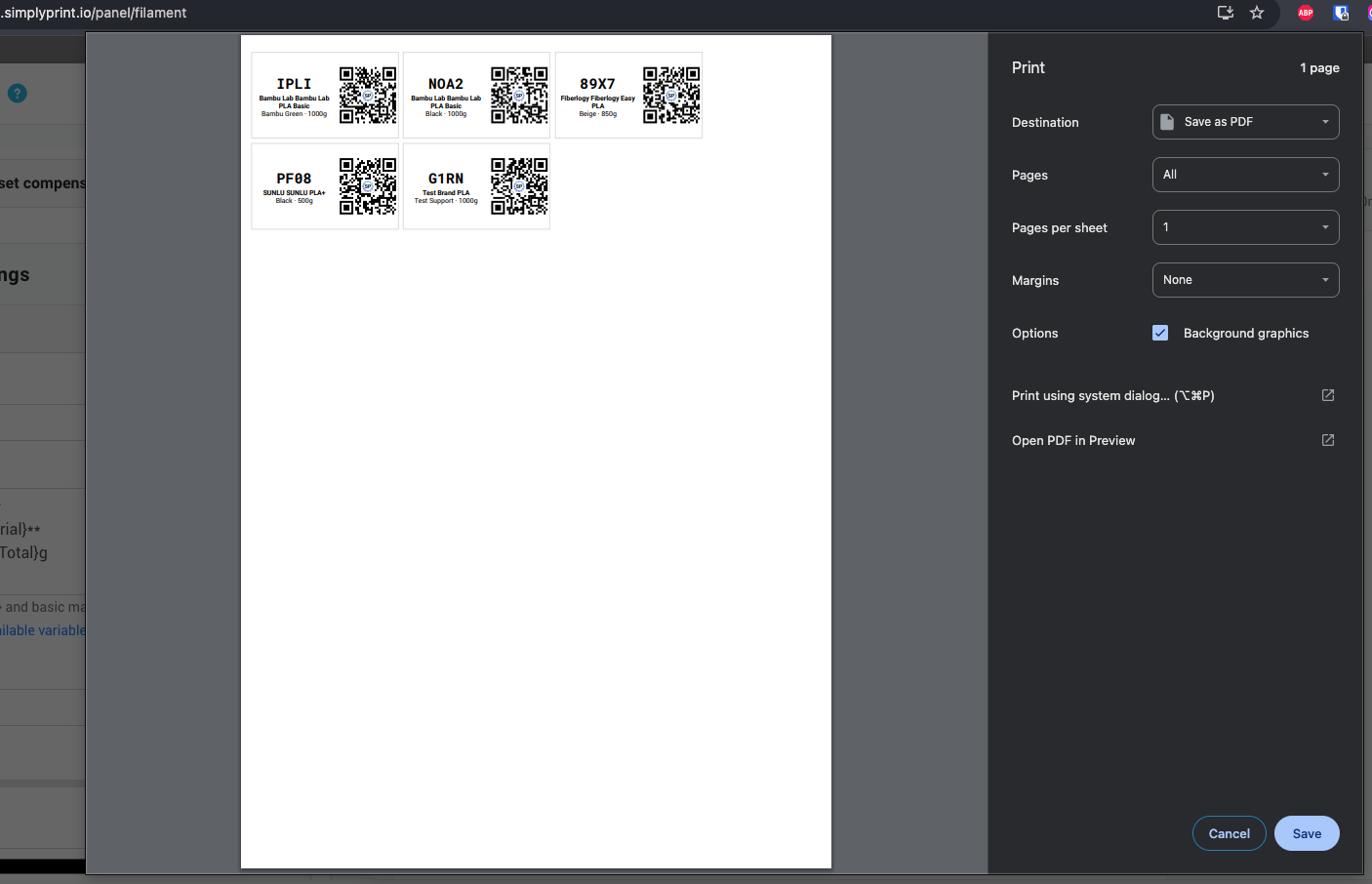
Click Print to open your browser's print dialog. The label generator sets up the correct page size automatically.
For best results, disable "Scale to fit" and set margins to "None" in your browser's print settings.
Download PDF
Click Download PDF to generate a high-quality PDF file. This is ideal for:
- Printing later
- Sending to a print shop
- Archiving your label designs
Download PNG
For single-page layouts, you can download as PNG image. Multi-page layouts download as a ZIP file containing one PNG per page.
Copy to clipboard
Single-page labels can be copied directly to your clipboard for pasting into other applications.
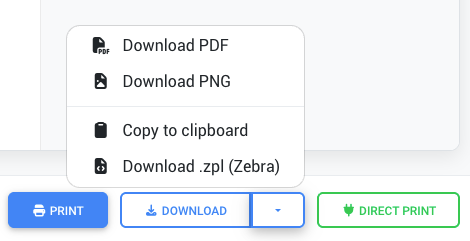
Direct print (Zebra and DYMO)
Direct print lets you send labels straight to a connected Zebra or DYMO label printer without downloading files or using the browser print dialog.
Direct print requires the Pro plan.
Supported printers
- Zebra - ZD, ZT, and GK series thermal printers via Zebra Browser Print
- DYMO - LabelWriter series via DYMO Web Service
How to use direct print
- Connect your label printer to your computer
- Install the required software:
- Zebra: Zebra Browser Print
- DYMO: DYMO Web Service
- Click Direct print in the label generator
- Select your printer brand
- Choose your printer from the dropdown
- Click Send
Once configured, the label generator remembers your printer. Future prints show a Send to [Printer] button for one-click printing.
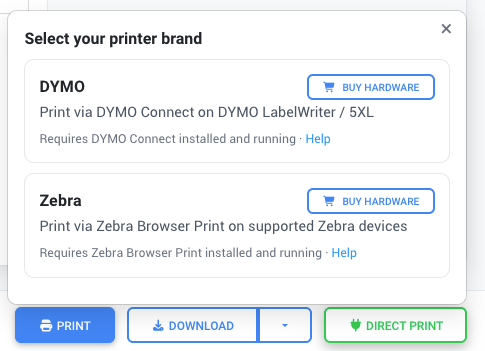
Label size compatibility
DYMO printers only support specific label sizes. If your current preset doesn't match a supported DYMO label, you'll see a warning. Click View supported sizes to see compatible label dimensions.
Saving custom presets
After customizing your label design, you can save it as a preset:
- Click the Save dropdown
- Choose Save as new (or Save to update an existing preset)
- Enter a name for your preset
Your saved presets appear in the preset dropdown under "User Presets" and are available across your organization.
Tips and best practices
- Test on plain paper first - Print a test page before using expensive label stock
- Use black & white mode for thermal printers - Colored elements won't print correctly on thermal labels
- Include the short ID on every label - It's the quickest way to identify a spool
- Keep QR codes large enough - Small QR codes may not scan reliably, especially with logos
- Use high error correction for labels that may get damaged or dirty
Related articles
Feature availability by plan
All label generator features are available on the Pro plan. Print Farm and School plans include everything from Pro.
Still need help? Ask the team