Bambu Lab Client MacOS setup: allow open on startup & run in background
Written By Albert Møller Nielsen
Last updated 6 months ago
Bambu Lab Client macOS Setup: Allow Open on Startup
To ensure the SimplyPrint Bambu Lab Client starts automatically when you log in, follow these steps to add it to your Login Items and allow it to run in the background.
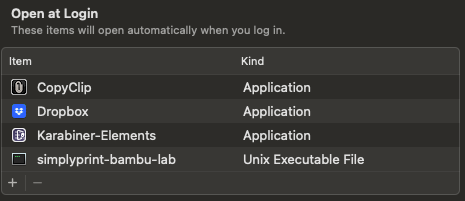
Step 1: Add to Login Items
- Open System Settings on your Mac.
- Go to General > Login Items.
- Under the Open at Login section, click the + (plus) button.
- Navigate to Applications > simplyprint-bambu-lab.
- Select the simplyprint-bambu-lab file and click Open.
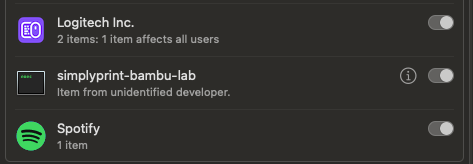
Step 2: Allow Running in the Background
- In the Login Items section, scroll down to Allow in the Background.
- Find simplyprint-bambu-lab in the list.
- Toggle the switch ON to allow it to run in the background.
This ensures the SimplyPrint Bambu Lab Client starts automatically and continues running as needed.
For further guidance, you can refer to Apple’s official instructions: Open items automatically when you log in.
Still need help? Ask the team