Advanced smart tagging: file metadata, filename rules & automation
Written By Albert Møller Nielsen
Last updated 6 months ago
Advanced smart tagging: file metadata, filename rules & automation
SimplyPrint can automatically read metadata you embed in your GCode or 3MF files and use it to apply tags, set nozzle data, material info, bed type, and even fill in custom fields - all on upload. This is especially powerful for automated workflows where files are sliced and uploaded without manual interaction.
Who is this for?
This feature is built for power users and automated setups that need more control than what regular auto-tagging offers. Some examples:
- Automated slicing workflows - if you use SimplyPrint's auto-slicing, slicer post-processing scripts, or CI/CD pipelines that upload files via the API, you can bake metadata directly into the files so everything is tagged correctly without anyone touching it.
- Print farms that want files auto-tagged with client names, order numbers, or project IDs pulled from the filename or embedded in the file itself.
- Teams with naming conventions - if your files always follow a pattern like
client-AcmeCorp-bracket-v2.gcode, you can have SimplyPrint automatically extract the client name and fill it into a custom field. - Organizations with custom tags - regular auto-tagging handles nozzle size and material, but it can't apply your own custom tags like "Urgent", "QA Required", or "Client-A". Smart tagging can.
- Custom build plates - this is the only way to automatically assign a specific bed type or custom build plate to a file on upload.
The embedded metadata approach is especially well suited for automation. When files are sliced and uploaded automatically, there's no manual step to set tags or fill in fields. By embedding ; sp: lines in your slicer's start GCode or injecting a metadata JSON into 3MF files, every file arrives in SimplyPrint fully tagged and ready to go.
How is this different from regular auto-tagging?
Regular auto-tagging runs automatically on every file upload and sets nozzle size and material tags based on what the slicer puts in the GCode. It's fully automatic and works great for those two things.
Advanced smart tagging goes further. It lets you:
- Apply custom tags (ones you've created yourself).
- Set the bed type / build plate.
- Fill in custom field values (like order numbers, client names, departments).
- Use regex-based filename rules to match patterns in filenames and extract data.
- Embed metadata directly in your GCode or 3MF files for full control.
Smart tagging runs after regular auto-tagging and can override or add to its results. If you're happy with just nozzle and material tags, you don't need this. But if you want more - custom tags, custom fields, bed types, or filename-based automation - this is where you set it up.
What you can set
With embedded metadata, you can control the following properties per file:
How it works
SimplyPrint metadata is processed automatically on file upload. It layers on top of the standard GCode analysis auto-tagging in this order:
- GCode analysis - nozzle, bed, and material data detected from slicer output (existing behavior).
- SimplyPrint metadata - values from
; sp:comments or 3MF metadata files (overrides step 1). - Filename rules - regex-based rules you configure in settings (overrides steps 1-2).
- Manual tags - anything you set by hand at upload time (final override).
Each step can override or add to the previous one. Custom tags are always additive - they stack up from all sources.
GCode format
Add comment lines starting with ; sp: to the top of your GCode file (within the first 150 lines). Each line follows this format:
; sp:key = value
Here's a full example with all supported keys:
; sp:version = 1
; sp:tags = BedTextured, Urgent, Client-A
; sp:bed_type = Textured PEI Plate
; sp:nozzle.0.size = 0.6
; sp:nozzle.0.type = hardened_steel
; sp:nozzle.0.volume_type = high_flow
; sp:material.0.type = PLA
; sp:material.0.color = Red
; sp:material.0.hex = #FF0000
; sp:material.0.width = 1.75
; sp:field.order_number = ORD-12345
; sp:field.department = Engineering
Key reference
Multi-extruder support
Use the extruder index (0-based) in the dot notation to set values per extruder:
; sp:nozzle.0.size = 0.4
; sp:nozzle.1.size = 0.6
; sp:material.0.type = PLA
; sp:material.1.type = PETG
Injecting metadata into a 3MF file via command line
Since 3MF files are just ZIP archives, you can inject metadata with standard tools:
On macOS/Linux, create your simplyprint-metadata.json file, then run:
zip -j my-file.3mf simplyprint-metadata.json
On Windows with PowerShell, you can use the .NET ZipFile class or any ZIP utility.
Filename tag rules
In addition to embedded metadata, you can set up regex-based rules that automatically match filenames and apply tags, bed types, and custom field values. This is great if you follow a naming convention for your files and want SimplyPrint to pick up on it automatically.
Filename tag rules use regular expressions (regex). Misconfigured patterns may match unintended files. If you're not familiar with regex, the settings page has a built-in AI prompt you can copy and paste into ChatGPT or Claude to get help writing your patterns.
Where to find it
Go to Settings > Tagging, scroll down to Advanced smart tagging. You'll see the Filename tag rules section at the bottom.
How rules work
Each rule has a regex pattern that gets tested against the full filename (e.g. bracket-textured-plate.gcode). When the pattern matches, the configured actions are applied. You can set:
- Custom tags - one or more tags to apply.
- Bed type - a build plate to set on the file.
- Custom field values - static values or values extracted from the filename using capture groups.
Rules are checked in order, and multiple rules can match the same file - their results stack.
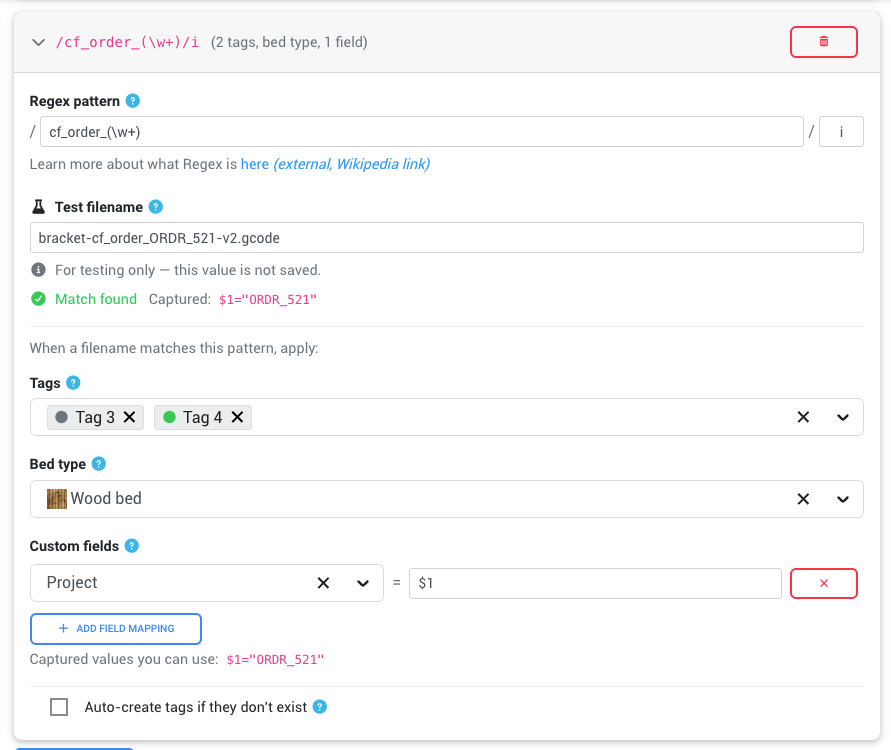
Setting up a rule
- Go to Settings > Tagging in your SimplyPrint panel.
- Scroll to the Advanced smart tagging section.
- Under Filename tag rules, click Add rule.
- Enter a regex pattern (the input shows it between
/slashes). - Optionally change the flags - the default
imakes it case-insensitive. - Choose which tags, bed type, and/or custom field values to apply.
- Use the Test filename input to verify your pattern matches correctly.
- Click Save at the bottom of the settings page.
Example rules
Here are some common patterns to help you get started.
Match keywords for tagging:
Pattern: urgent or rush (use the pipe character between them)
Matches filenames containing "urgent" or "rush", e.g. rush-order-bracket.gcode
Use case: Apply an "Urgent" custom tag.
Pattern: textured or smooth or satin (use pipe characters between them)
Matches filenames with bed surface keywords, e.g. bracket-textured-plate.gcode
Use case: Set the correct build plate automatically.
Pattern: prototype
Matches any filename with "prototype" in it, e.g. prototype-v3-bracket.3mf
Use case: Apply "Proto" and "Draft" tags.
In regex, the pipe character means "or" - so urgent pipe rush matches either word. You type the pipe character between the words in the pattern input field.
Extract values with capture groups:
Capture groups are parentheses () in your regex. They let you extract parts of the filename and use them as custom field values.
Pattern: ORD-([a-zA-Z0-9_-]+)
Example filename: bracket-ORD-521-v2.gcode
Captures: $1 = 521-v2
Pattern: client-([a-zA-Z0-9_-]+)
Example filename: bracket-client-AcmeCorp.gcode
Captures: $1 = AcmeCorp
Pattern: (PLA|PETG|ABS)-(textured|smooth)
Example filename: housing-PLA-textured-final.gcode
Captures: $1 = PLA, $2 = textured
Using capture groups as custom field values
When you add a custom field mapping to a rule, the value field supports capture group references:
$1- replaced with the first captured group.$2- replaced with the second captured group.Project-$1- you can mix static text with captured values.hello- or just use a plain static value (no substitution).
So if your pattern is ORD-([a-zA-Z0-9_-]+) and the filename is bracket-ORD-521-v2.gcode, setting the value to $1 gives you 521-v2, while Order $1 gives you Order 521-v2.
Testing your patterns
Every rule has a built-in test filename field. Type a sample filename to instantly see:
- Whether your pattern matches.
- Which capture groups were found and what they contain.
The test value is not saved - it's purely for verification. The settings page also shows clickable sample filenames you can try.
Settings
Parse SimplyPrint metadata from files
When enabled (on by default), SimplyPrint will scan uploaded files for embedded metadata. Turn this off if you don't use this feature and want to skip the scanning step.
Auto-create tags from metadata
When enabled, tag names referenced in file metadata or filename rules will be automatically created as custom tags in your organization if they don't already exist. This is off by default to prevent unexpected tag creation.
Be careful with auto-create - it will create tags for any name found in your metadata, even typos.
Custom fields
You can set custom field values via metadata using the field.FIELD_ID key in GCode or the fields object in 3MF JSON. The field ID is the identifier you assigned when creating the custom field in SimplyPrint.
To find a custom field's ID, go to Settings > Custom fields and check the field configuration.
Tips for automation workflows
Embedded metadata really shines in automated setups. Here are some ideas:
- Auto-slicing - If you use SimplyPrint's auto-slicing feature, add
; sp:lines to your slicer profile's start GCode. Every file that gets auto-sliced will automatically carry the right metadata, so when it lands in the queue it's already tagged with the correct bed type, custom tags, and field values. - CI/CD integration - Add a post-processing step that injects
; sp:lines into your GCode files before uploading via the SimplyPrint API. - Slicer profiles per project - Create different slicer profiles with different
; sp:lines for different projects or clients. When a file is sliced with that profile, it arrives pre-tagged. - Batch processing - Use a script to inject
simplyprint-metadata.jsoninto multiple 3MF files at once for bulk uploads. - Filename conventions - Combine filename rules with a consistent naming convention (e.g. always include the client name and order number in filenames) for automatic tagging without modifying file contents.
Still need help? Ask the team