How to enable 2 factor authentication
Written By Albert Møller Nielsen
Last updated 6 months ago
Go to the SimplyPrint panel
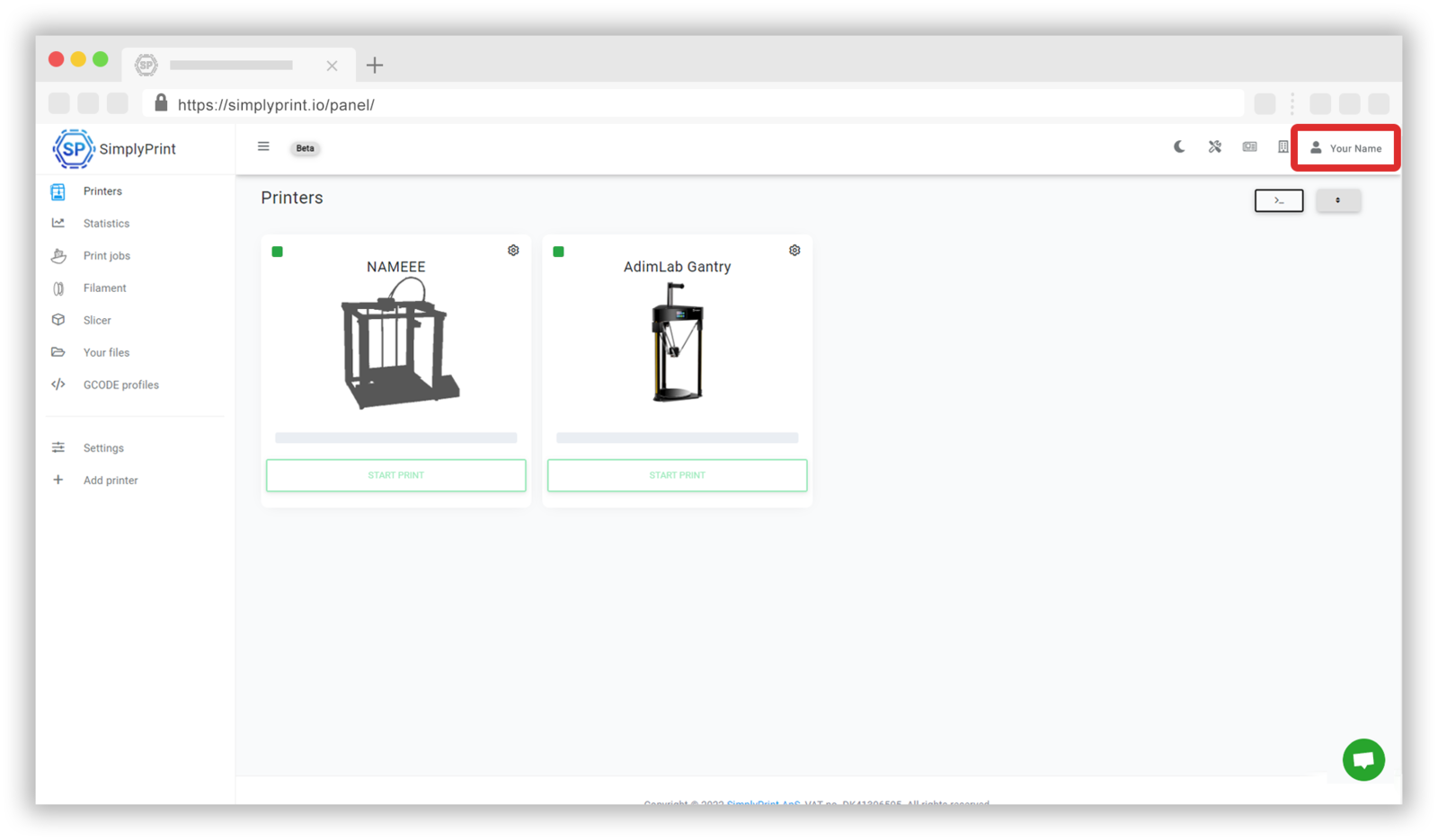
To enable your 2 factor authenticator, you'll have to start by going to the SimplyPrint panel. At the panel you can find the 'Your account' button which is located in the dropdown menu under your name in the top right corner.
Enabling two factor authentication
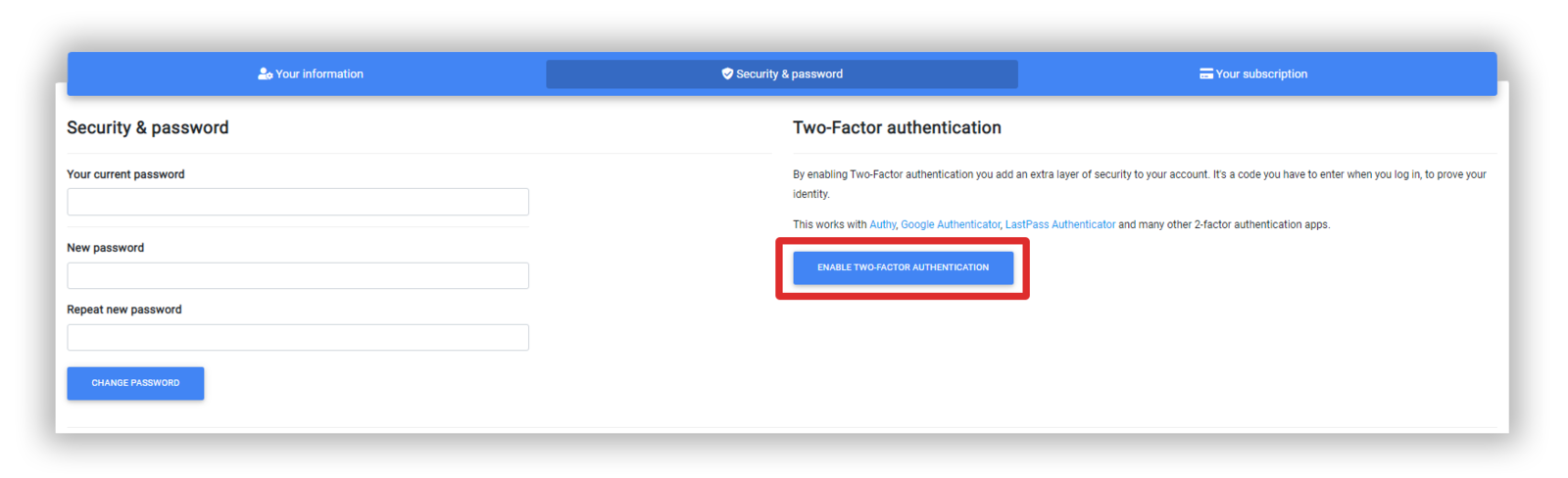
This is where you'll find different settings for your account including the option to enable 2 factor authentication for your SimplyPrint account. To do this, go to the 'Security & password' settings menu.

You can then enable 2 factor authentication by pressing the 'ENABLE TWO-FACTOR AUTHENTICATION' button and follow the steps shown on screen.
Still need help? Ask the team