Bambu Lab Integration: How to update the client
Written By Albert Møller Nielsen
Last updated 6 months ago
On some installation systems such as macOS and Windows over-the-air (OTA) updates are not quite stable yet, we recommend you use the manual approach to update until futher notice
After following the installation steps for the first time, you now have a certain version of the Bambu Lab Client installed. Once in a while a new update will be pushed, containing features, bug fixes and other important updates.
There are multiple ways to keep the client up to date.
Inside the Bambu Lab client
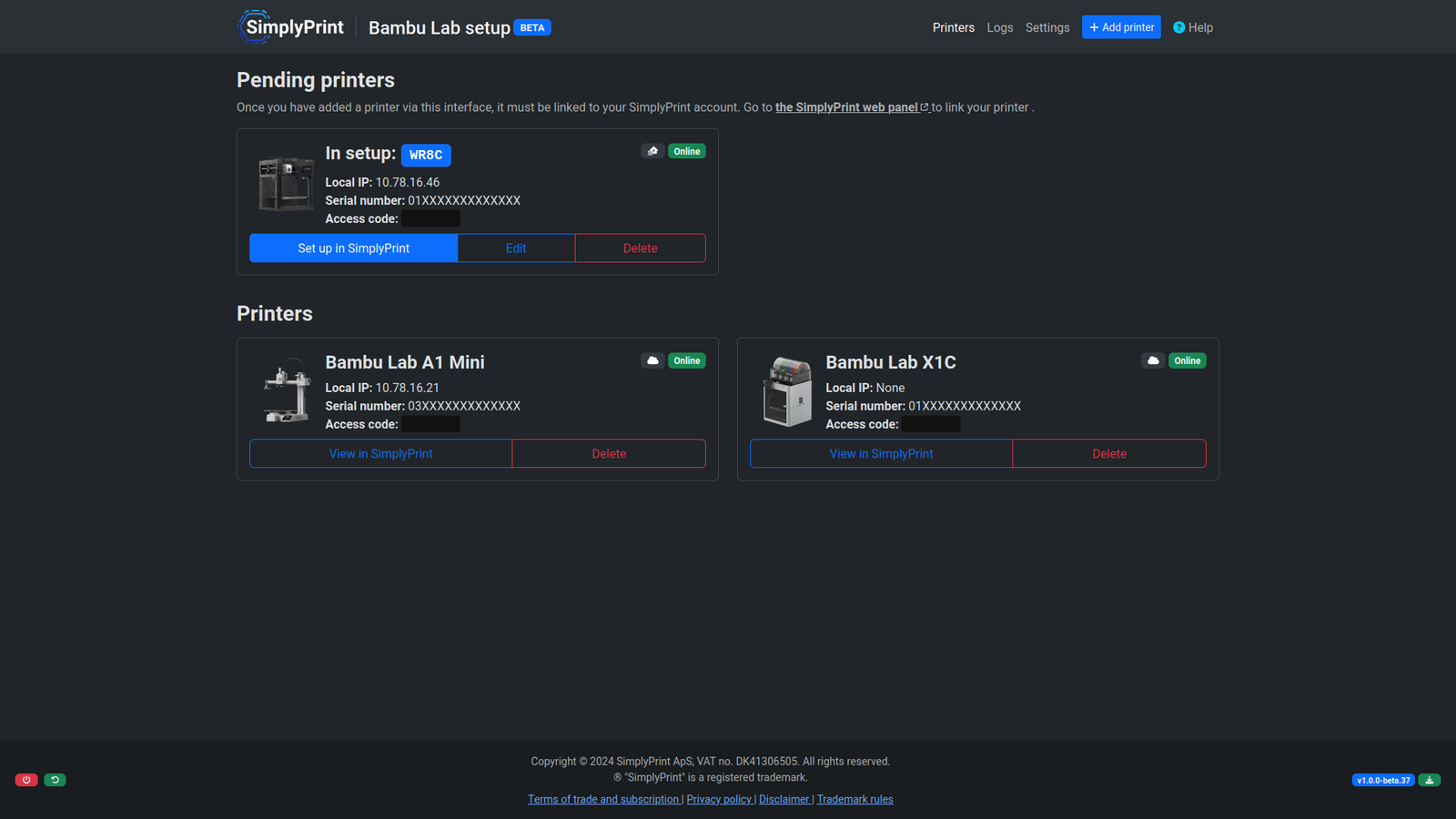
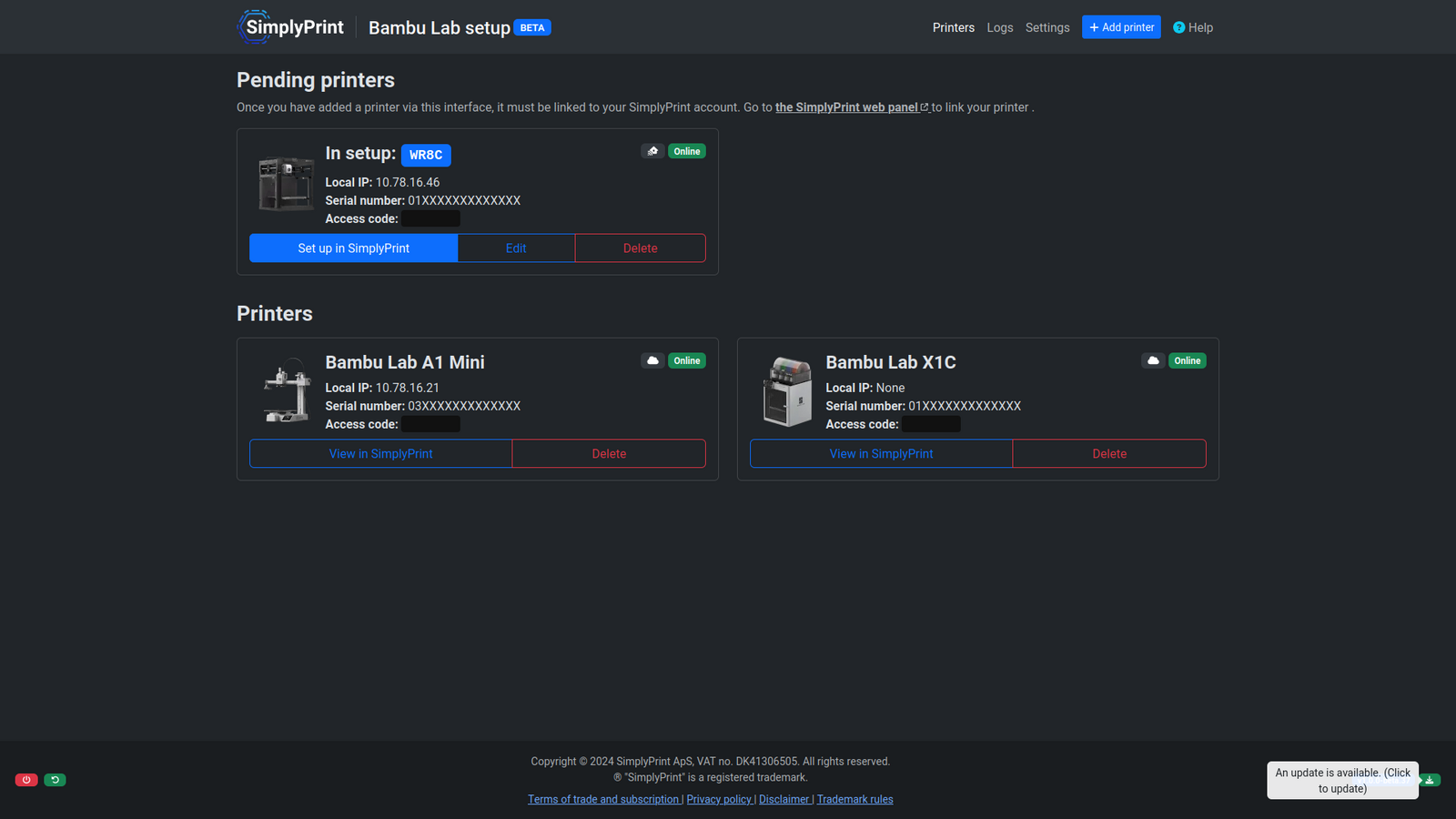
When a new update is available, a green update icon will appear next to the version number in the Bambu Lab client footer.
From the SimplyPrint panel
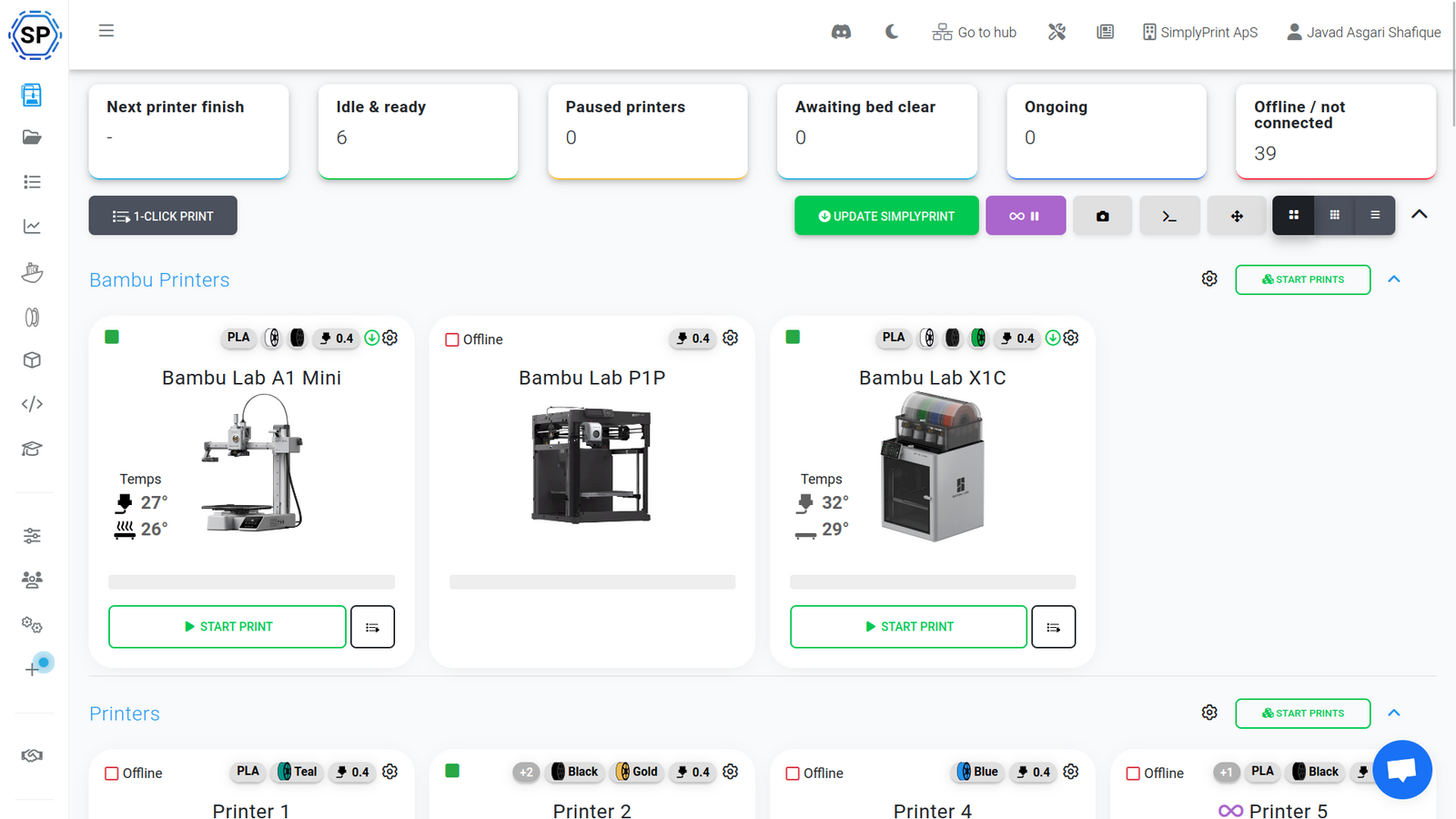
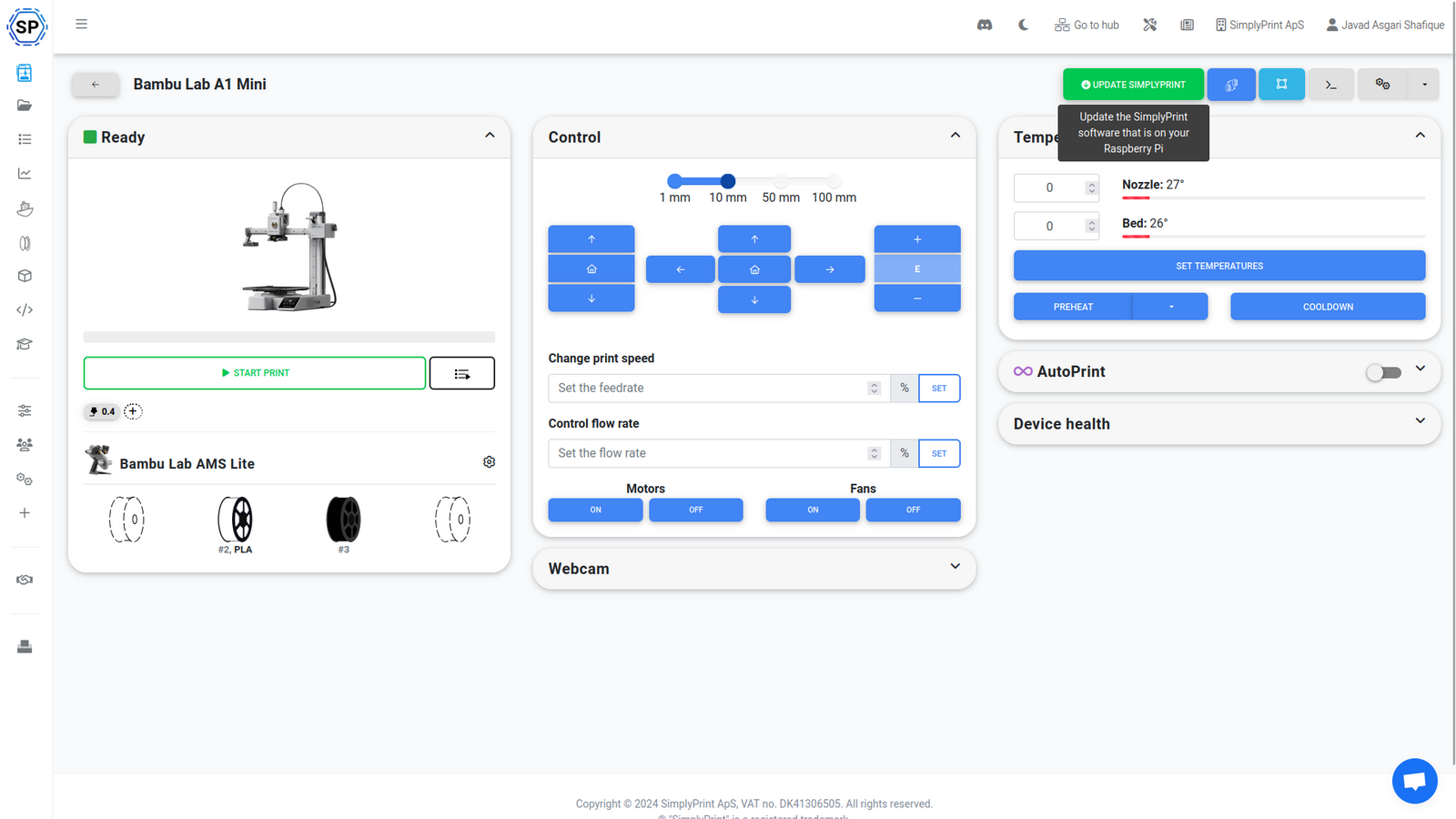
You will also be able to see when a new update is available via the SimplyPrint panel, here it appears as another green button you can click either on the particular printer or for all printers, note that all Bambu Lab printers connected on the same client will be part of the client update no matter which printer you start the update on, even if you start it on all of them.
During this process they will momentarily go offline, while the client is restarting.
Manually
In some cases we cannot automatically update the client for you, in that case just following the exact same steps as you followed to install the client (https://simplyprint.io/setup-guide#bambu), it will prompt you in most cases if you want to overwrite the existing installation, which you want to. Your configuration will be preserved.
Still need help? Ask the team