Bambu Lab integration: Webcam setup and usage guide
Written By Albert Møller Nielsen
Last updated 6 months ago
For webcam streaming to work, the SimplyPrint Bambu Lab client must either be on the same network as the Bambu Lab printer, or otherwise be able to reach the printers local network.
Supported printers
We support the built-in webcam on all current Bambu Lab printers:
- A1-series: A1 and A1-mini
- P1-series: P1P and P1S
- X1-series: X1, X1-Carbon and X1E
- New H2D printer and variants
This will work both in LAN-only and Cloud mode as long as the printer is reachable over the local network from the SimplyPrint Bambu Lab client. It is very important to make sure that the printer is reachable in Cloud mode, as it is otherwise possible to run the client on a different network.
Enabling webcam-feed
On most Bambu Lab printers the webcam is enabled by default, but can be turned on and off on the A1 and X1-series printers.
Enabling webcam for X1-series printers
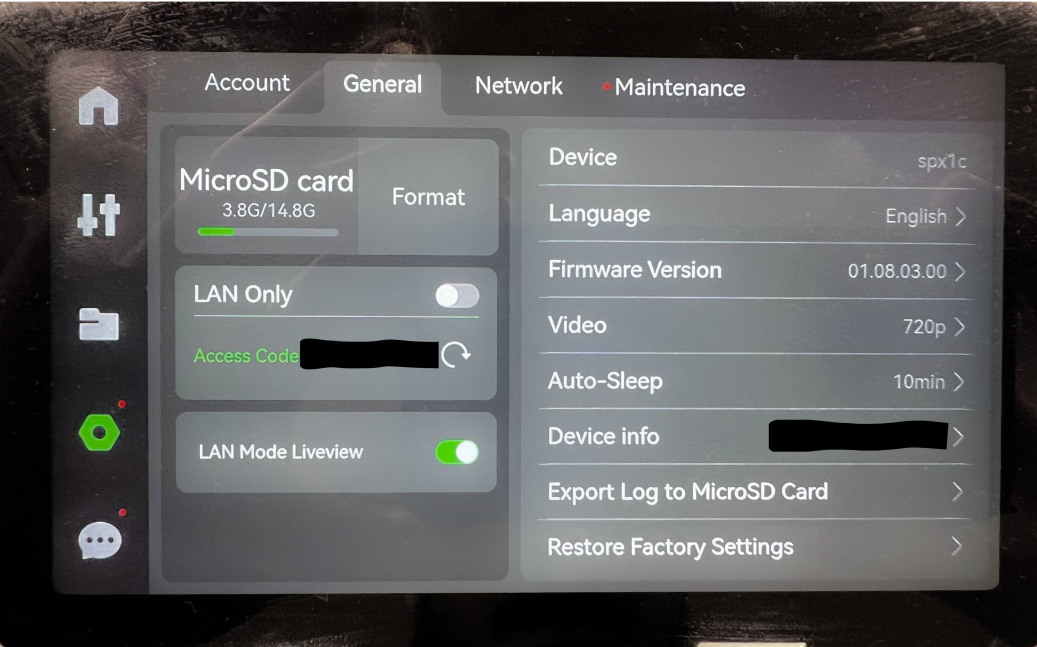
When using the X1-printer in either LAN-only or Cloud mode, it is very important that the "LAN Mode Liveview" option is on.
****
Enabling webcam for A1-series printers
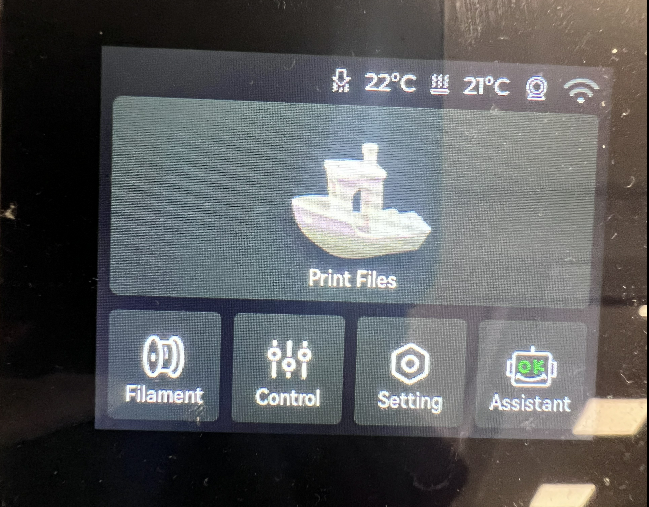
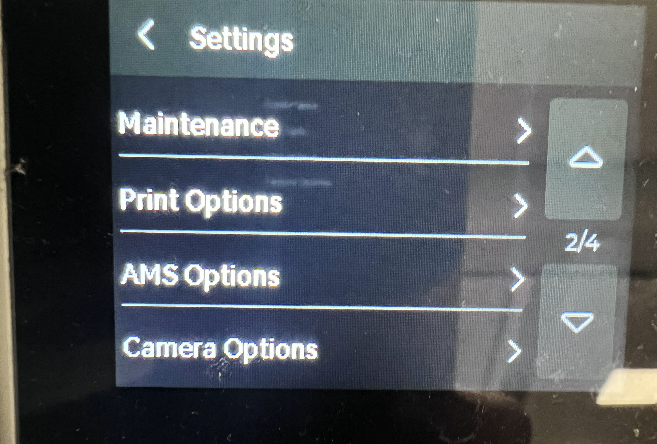
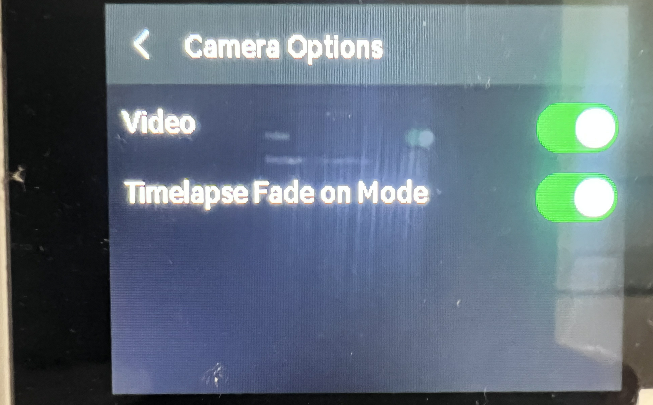
The A1-series printers similarly have a Video setting which must be enabled for their webcams to be active, it can be found as seen in the images under Camera Settings.
What can i do with my webcam-feed in SimplyPrint?
- Live webcam stream inside SimplyPrint
- Historical snapshots of printer-events such as pauses, cancels and finished prints.
- Opt-in AI-features
Performance and frame rate
The X1-series printers clearly have the best performance, only limited by the allowed FPS on the respective plans we provide. The P1-series follow this with respectable frame rates that mostly can keep up with the fastest 0.5 second per frame we currently offer, and only the A1-series trail a bit behind with an average frame rate of 1 or 2 pictures per second.
What can i do if i experience issues with the webcam setup?
- If in LAN-only mode, ensure the webcam works on the same machine / network as the client in similar software such as BambuStudio or OrcaSlicer.
- Check if you can 'ping' the printer's IP-address from the client device, more advanced users can check if the ports
6000(A1, P1) or322(X1/H2D) are open. - Reach out on Discord, click here to join!
Still need help? Ask the team